
User guide




Installing the WIP310
Accessing the Wireless Network
Cisco WIP310 User Guide 36
2
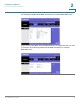
STEP 4 Do one of the following:
• Scroll down to enter the passphrase. (To generate a passphrase, select
Options. Click Generate Key, then Save.)
• Scroll down to enter the 64 or 128-bit key into the Key 1, Key 2, Key 3, or
Key 4 field. You chose the TX key field (1, 2, 3, or 4) in Step 3.
STEP 5 Press the Select button.
Configuring WPA/WPA2 Personal
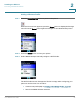
STEP 1 In the Wi-Fi Security Screen, scroll to WPA/WPA2 Personal and press the Right
Arrow key.
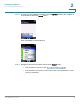
STEP 2 Enter the passphrase to access the router.
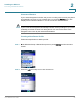
STEP 3 Press the Select button. A message appears if the connection is successful.
NOTE If you have more than one wireless profile saved, the phone tries to contact the first
wireless router in the list upon startup.