
User guide






Chapter 3
Using Your WIP310
24
Wireless-G IP Phone
Web Services >Web Services Options
Using Local Search
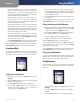
Use local search to find listings in your area based on the
search criteria you enter. To use local search:
In the 1. Web Services menu, press the Up or Down Arrow
key to navigate to Local Search. Press the Select button
to see the Local Search screen.
Use the phone’s keypad to enter your zip code. 2.
Press the 3. Down Arrow key to enter keyword
information, using the phone’s keypad.
The phone displays available local information on the
screen.
If you want to delete one character at a time, press the
Back soft key.
Getting Stock Quotes
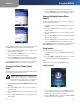
To obtain stock quotes, you create a list of stocks to track.
In the 1. Web Services menu, press the Up or Down Arrow
key to highlight Stock.
Press the2. Select button.
In the 3. GET QUOTE field, enter the symbol for the stock
you want to track.
Press the 4. Select button. The name is added to the list
of stocks.
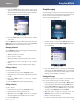
To view the stock list, press the 5. Back soft key. Press the
Power/End Call button to return to the Home screen.
To add other stocks to the list:
In the list of stocks you are tracking, press 1. Options.
Scroll to 2. Edit List and press the Select button.
Press 3. Options and scroll to Add New. Press the Select
button.
In the 4. GET QUOTE field, enter the symbol for the stock
you want to track.
Press the 5. Select button. The name is added to the list
of stocks.
To view the stock list, press the press the 6. Back soft
key. Press the Power/End Call button to return to the
Home screen.
To delete a stock from the list:
In the list of stocks you are tracking, press 1. Options.
Scroll to 2. Edit List and press the Select button.
Highlight the stock you want to delete.3.
Press 4. Options and scroll to Delete. Press the Select
button.
To view the updated stock list, press the press the 5. Back
soft key. Press the Power/End Call button to return to
the Home screen.
Local Weather
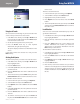
You can access local weather information by zip code. To
get weather information:
In the 1. Web Services menu, press the Up or Down Arrow
key to highlight Weather.
Enter the first zip code for the area weather you want 2.
to view.
Press the 3. Select button. The screen displays local
weather information. The location you entered is
added to the list of weather information. Press the
Back soft key to view this list.
To add another location to the list:
In the 1. Web Services menu, press the Up or Down Arrow
key to highlight Weather.
Press the 2. Select button to view the list of weather
locations.
Press 3. Options and use the Up or Down Arrow key to
highlight Add New.
Press the 4. Select button.
Enter the zip code for the weather area you want to 5.
view. The screen displays the local weather information
and the location you entered is added to the list of
weather information. Press the Back soft key to view
this list.