
User guide







Chapter 3
Using Your WIP310
22
Wireless-G IP Phone
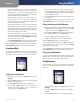
Press the 3. Select button. The Contacts entry screen
appears. You can add the Name, Home Phone, Work
Phone, Mobile Phone, Email address and street address.
Use the keypad to enter the information.
Contacts > Add New
Press the 4. Select button (check mark icon) to confirm
your choice.
Press the Options soft key to add another entry. Press the
Back soft key to move back one screen. Press the Power/
End Call button to return to the Home screen.
Managing Contacts
Use the Options soft key to manage your Contacts entries.
You can do the following:
Add New— • Add a new contact.
Delete— • Delete a contact.
Add to Speed Dial— • Add a speed dial for the contact.
Send Message— • Send a message to the contact’s
phone.
Edit Dial— • Edit the contact’s number before dialing
Editing a Contact
To edit an existing contact:
In the Home screen, press the 1. Contacts soft key.
Navigate to the contact whose information you want 2.
to edit.
Press the 3. Select button to open the contact’s
information.
Press the 4. Select button when finished editing.
Calling a Contact
To call a contact:
In the Home screen, press the 1. Contacts soft key.
Navigate to the contact you want to call.2.
(Optional) Press the 3. Right Arrow key to navigate
through multiple phone numbers for the contact.
Press the 4. Call button.
Using Messaging
Use Messaging to compose and send a text message up
to 127 characters. You can store up to 50 messages in your
Inbox, 50 in the Sent box and 50 in the Drafts box.
To access the Messaging menu:
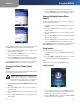
Messaging
From the Home screen, press the 1. Select button to see
the menu options. Press the Left or Right Arrow key to
select Messaging.
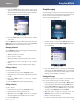
Messaging > Inbox
Press the 2. Select button to display the Messaging
menu. Press the Up or Down Arrow key to navigate
to an option. You can view your Inbox, compose a New
Message, view any Drafts or Sent Items .
Viewing a Message
A notification appears on the phone screen when you
have a new, unread message. To view a message:
In the Messaging menu, press the 1. Up or Down Arrow
key to navigate to Inbox and press the Select button.
Use the 2. Up or Down Arrow key to scroll to the desired
message and press the Select button to view the
message or press Options and choose Read.
(Optional) After reading the message, press the 3.
Options button to choose one of the following:
Delete • —Delete the message.
Forward • —Send the message to another phone. Enter