
User guide







Chapter 3
Using Your WIP310
21
Wireless-G IP Phone
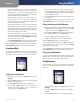
Settings > Date/Time Settings
After navigating to Date/Time in the Settings menu, press
the Select button to see the Date and Time options.
Press the 1. Up or Down Arrow key to navigate to the
setting you want to change.
Press the 2. Left or Right Arrow key to increase or
decrease the number for each setting.
Press the 3. Select button (check mark icon) to confirm
or press the Cancel soft key to exit without changes.
Press the Back soft key to move back one screen. Press the
Power/End Call button to return to the Home screen.
Changing the Phone’s Name (Station
Name)
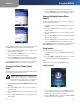
The Station Name is the name of the phone that is shown
in the upper right of the Home screen.
NOTE: If this phone is part of a Linksys Voice
System and is registered to a SPA9000, the
Station Name also appears in the Corporate
Directory. See Using Messaging on page 22.
In the Home screen, press the 1. Select button to choose
Settings.
Press the 2. Select button and scroll to navigate to
Display Settings.
Press the 3. Select button to see the Display Settings
options.
Press the 4. Up or Down Arrow key to navigate to the
Station Name.
Use the keypad to enter the name for your phone. 5.
Press the 6. Select button (check mark icon) to confirm
or press the Cancel soft key to exit without changes.
Viewing the Display Name or Phone
Number
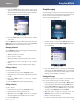
To view the Display Name (the name that appears on
Caller ID) or Phone Number.
In the Home screen, press the 1. Select button to choose
Settings.
Press the 2. Select button and scroll to navigate to
Display Settings.
Press the 3. Select button to see the Display Settings
options.
Press the 4. Up or Down Arrow key to navigate to Display
Name or Phone Number.
Press the 5. Select button (check mark icon) to confirm
or press the Cancel soft key to exit without changes.
Press the Back soft key to move back one screen. Press the
Power/End Call button to return to the Home screen.
Using Contacts
You can access the Contact menu by:
In the Home screen, press the 1. Select button to choose
Settings.
Press the 2. Right or Left Arrow button to scroll and
navigate to Contacts. Press the Select button.
OR
In the Home screen, press the Contacts soft key.
Adding a Contact
Contacts
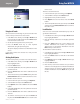
In the Contacts menu, press the 1. Select button to
access the Contacts list. All current Contacts appear. If
there are no names, an empty list appears.
Press the 2. Options soft key and press the Up or Down
Arrow key to navigate to Add New.