
User guide







Chapter 3
Using Your WIP310
19
Wireless-G IP Phone
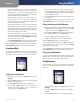
Forward Busy Dest • —If you selected Forward Busy,
enter the phone number to which you want to
forward the calls. To stop call forwarding, delete the
call forwarding number. By default, calls are forwarded
to voice mail (vm appears in this field).
Forward No Ans • —Forward calls when there is no
answer at your phone. You can set the number of
seconds for the phone to ring before it is forwarded in
the Forward No Ans Delay field.
Forward No Ans Dest • —If you selected Forward No
Answer, enter the phone number to which you want
to forward the calls. To stop call forwarding, delete the
call forwarding number. By default, calls are forward to
voice mail (vm appears in this field).
Forward No Ans Delay • —If you selected Forward No
Answer, the number of seconds to elapse before the
call is forwarded. Press the Left or Right Arrow keys to
select the number of seconds.
Press 3. the Select button (check mark icon) to confirm
or press the Cancel soft key to exit without changes.
Press the Back soft key to move back one screen. Press the
Power/End Call button to return to the Home screen.
Using Speed Dials
Use this feature to add, edit or delete entries in the phone’s
Speed Dial list. You can have up to 98 Speed Dial numbers.
Speed Dial 1 is reserved for voice mail and is not editable.
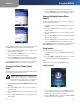
Settings > Speed Dial
Adding a Speed Dial Number
In the Home screen, press the 1. Select button to choose
Settings.
Press the 2. Select button and scroll to navigate to Speed
Dial in the Settings menu.
Press the 3. Select button to see the Speed Dial list.
Press the 4. Up or Down Arrow key to navigate to an
available Speed Dial number slot (1 is reserved for
voice mail). Press the Select button.
Enter a name for the speed dial, using the keypad. 5.
(See Entering Text on page 4.) When you are finished,
press the Down Arrow key to enter a phone number to
associate with this name.
Press the 6. Select button (check mark icon) when you
are finished.
Press the Back soft key to move back one screen. Press the
Power/End Call button to return to the Home screen.
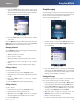
Editing or Deleting a Speed Dial Number
When you are viewing the Speed Dial list, press the 1. Up
or Down Arrow key to navigate to the entry you want
to edit or delete. Press the Options soft key.
Press the 2. Up or Down Arrow key to navigate to Remove
Entry, Edit or Edit Dial. Press the Select button.
Navigate to • Edit to edit the speed dial name.
Navigate to • Edit Dial to edit the speed dial number.
Press the Select button when you are finished.
If you navigated to Remove Entry, press OK (Select button).
The message “Are you sure?” appears. Press the Select
button to remove the entry.
Press the Back soft key to move back one screen. Press the
Power/End Call button to return to the Home screen.
Calling a Speed Dial Number
To call a speed dial number that you’ve configured, press
and hold the speed dial digit. For speed dials with more
than one digit, press and hold the last number.
Using Ringtones
Use this feature to change the ringtone for your phone.
Choose no ring or select from any of six pre-programmed
ring tones.
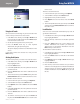
Settings > Ringtone
In the Home screen, press the 1. Select button to choose
Settings.
Press the 2. Select button and scroll to navigate to
Ringtone.
Press the 3. Select button to see the Ringtone options.