
User guide







Chapter 3
Using Your WIP310
18
Wireless-G IP Phone
to Call Preferences.
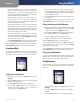
Press the 2. Select button and navigate to Do Not
Disturb.
Press the 3. Left or Right Arrow key to select ON or OFF.
Press the 4. Select button (check mark icon) to confirm
or press the Cancel soft key to exit without changes.
Configuring Call Waiting
If you are in a phone call, call waiting notifies you of
another incoming call by playing a beep and showing the
incoming call on the display. You can turn call waiting on
and off. To configure call waiting:
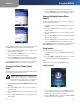
In the Home screen, press the 1. Select button to choose
Settings.
Press the 2. Select button and scroll to navigate to Call
Preferences.
Navigate to 3. Call Waiting and press the Left or Right
Arrow key to select ON or OFF.
Press the 4. Select button (check mark icon) to confirm
or press the Cancel soft key to exit without changes.
Press the Back soft key to move back one screen. Press the
Power/End Call button to return to the Home screen.
Blocking Anonymous Calls
You can configure your phone to block calls from an
unidentified caller. Calls from unidentified callers will not
ring your WIP310 phone. To configure call blocking:
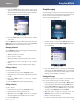
Settings > Call Preferences
In the Home screen, press the 1. Select button to choose
Settings. Press the Select button and scroll to navigate
to Call Preferences.
Navigate to 2. Block Anonymous Calls and press the Left
or Right Arrow key to select ON or OFF.
Press the 3. Select button (check mark icon) to confirm
or press the Cancel soft key to exit without changes.
Press the Back soft key to move back one screen. Press the
Power/End Call button to return to the Home screen.
Blocking Caller ID
You can configure your phone to block your Caller ID from
appearing when you make a call. To block your Caller ID:
Settings > Call Preferences
In the Home screen, press the 1. Select button to choose
Settings. Press the Select button and scroll to navigate
to Call Preferences.
Navigate to 2. Block Caller ID and press the Left or Right
Arrow key to select ON or OFF.
Press the 3. Select button (check mark icon) to confirm
or press the Cancel soft key to exit without changes.
Press the Back soft key to move back one screen. Press the
Power/End Call button to return to the Home screen.
Setting Up Call Forwarding
Use this option to forward incoming calls to a different
phone number or to your voice mail. You can forward all
calls, forward calls when your phone is busy, or forward
calls when there is no answer.
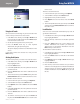
Settings >Call Forwarding > Forward All Dest
After navigating to 1. Call Forwarding in the Settings
menu, press the Select button to see the Call
Forwarding options.
Scroll 2. up or down to navigate to the call forward
option that you want. Your choices are:
Forward All • —Forward all calls.
Forward All Dest • —If you selected Forward All, enter
the phone number to which you want to forward all
calls. To stop call forwarding, delete the call forwarding
number.
Forward Busy • —Forward calls when you are on a call.