
User guide







Chapter 3
Using Your WIP310
17
Wireless-G IP Phone
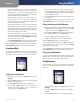
Viewing Missed Calls
This selection allows you to quickly view any Missed Calls.
If there are no missed calls, this choice does not appear. A
phone icon appears on-screen along with a message of
how many calls were missed.
Missed Call Notification
In the Home screen, press the 1. Options soft key. Press
the Up or Down Arrow key to navigate to Missed Calls.
Press the 2. Select button. A list of missed calls appears.
If there is more than one missed call, press the Up or
Down Arrow key to navigate to a call.
Press the 3. Select button to view details about the call.
If you press the 4. Options soft key, you can Send to
Contacts, Send Message, Clear List, Clear Entry or Edit
Dial (edit the call information).
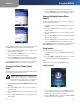
Viewing the Call History
Use this option to view the recent call history for the
phone. You can view All Calls, Outgoing Calls, Incoming
Calls, or Missed Calls.
Call History
To view the call history:
When the phone is in the Home screen, press the 1. Up
Arrow key to access the Call History screen.
Press the 2. Left or Right Arrow key to scroll through
the Combined, Outgoing, Incoming, and Missed call
history lists.
OR
When the phone is in the Home screen, press the 1.
Select button. Press the Left or Right Arrow key to
scroll to the Call History option.
2.
Press the 3. Select button. The entire Call History
appears.
Press the 4. Left or Right Arrow key to scroll through the
Incoming Calls, Outgoing Calls and Missed Calls.
To place a call to a number in the phone’s Call History, or
view more details about a call:
Press the1. Up or Down Arrow key to navigate to the
entry, then press the Select button. A small green
phone icon appears above the Select button.
Press the 2. Select button to select the number to edit,
or immediately press the Call button to call that
number.
To save the number to contacts, send a message to, or
delete the number from the call history:
When the entry is highlighted, press the 1. Options soft
key, to see the submenu options. You can choose to
Send to Contacts, Send Message, Clear List, Clear Entry
or Edit Dial.
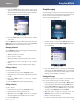
Call History > Send to Contacts
Use the 2. Up or Down Arrow key to navigate to your
choice and then press the Select button.
If you choose to Send to Contacts, the Contacts Entry menu
appears. You can edit the information.
If you choose Clear List or Clear Entry, the message “Are you
sure you want to remove this list/entry?” appears. Press the
Select button (check mark icon) to confirm your choice.
Press the Back soft key to move back one screen. Press the
Power/End Call button to return to the Home screen.
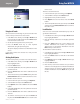
Setting Do Not Disturb on Your Phone
This selection allows you to block incoming calls.
In the Home screen, press the 1. Options soft key. Press
the Up or Down Arrow key to navigate to Do Not
Disturb.
Press the 2. Select button. The Do Not Disturb symbol
appears at the top of the phone screen.
To turn this feature off, follow steps 1 and 2, selecting DND
Off.
OR
In the Home screen, press the 1. Select button to choose
Settings. Press the Select button and scroll to navigate