Quick Start Guide Cisco Small Business Cisco Unmanaged Rackmount Switches Package Contents • Cisco SF 100-16, SF 100-24, SF 102-24, SG 100-16, SG 100-24, or SG 102-24 Unmanaged Rackmount Switch • Rackmount Kit • Power Cord • This Quick Start Guide
Welcome Thank you for choosing the Cisco SF 100-16, SF 100-24, SF 102-24, SG 100-16, SG 100-24, or SG 102-24 Unmanaged Rackmount Switch, a Cisco Small Business network communications device. This guide will familiarize you with the layout of the unmanaged rackmount switch and describe how to deploy the device in your network. For additional information, see www.cisco.com/smb. Network Speed and Auto MDI/MDI-X Detection All ports support network speed auto-negotiation and auto MDI/MDI-X crossover detection.
1 Installing the Cisco Switch There are three ways to physically install the switch: • Set the switch on a flat surface. • Mount the switch in a standard rack (1U high). • Mount the switch on a wall. Before you install the Unmanaged Rackmount Switch, follow the guidelines in this section. When you choose a location for the switch, consider the following guidelines: • Make sure that the switch is accessible and that the cables can be connected easily.
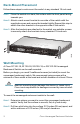
Rack-Mount Placement Follow these steps to rack-mount the switch in any standard 19-inch rack. STEP 1 Place the switch on a hard, flat surface with the front panel facing towards you. STEP 2 Attach a rack–mount bracket to one side of the switch with the supplied screws and secure the bracket tightly. Repeat this step to attach the other bracket to the opposite side of the switch.
STEP 3 Insert a screw into each hole, leaving a gap between the surface and the base of the screw head of at least 0.1 inches (3 mm). STEP 4 Place the unmanaged rackmount switch wall-mount slots over the 276583 screws and slide the unmanaged rackmount switch down until the screws fit snugly into the wall-mount slots. 2 Connecting Network Devices The application diagram is an example of a typical network configuration.
To connect the unmanaged rackmount switch to the network: STEP 1 Connect the Ethernet cable to the Ethernet port of a computer, printer, network storage, or other network device. STEP 2 Connect the other end of the network Ethernet cable to one of the numbered unmanaged rackmount switch Ethernet ports. The LED of the port lights if the device connected is active.
3 Features of the Unmanaged Rackmount Switch This section describes the exterior of the unmanaged rackmount switches that provide non-blocking, wire-speed switching for your network clients. Front Panel Ports The ports and LEDs are located on the front panel of the switch.
100M LED (if present)—(Green) Lights and remains lit when another device is connected to the port, is powered on, and a 100 Mbps link is established between the devices. When the LED is off, the connection speed is under 100 Mbps or nothing is cabled to the port. Gigabit LED (if present)—Lights and remains lit when another device is connected to the port, is powered on, and a 1000 Mbps link is established between the devices.
4 Specifications The following tables list the specifications for the unmanaged rackmount switches. Weights and Dimensions Model Weight Dimensions mm Dimensions Inch SF 100-16 16 RJ-45 10/100 ports SF 100-24 24 RJ-45 10/100 ports SF 102-24 24 RJ-45 10/100 ports, 2 shared Gigabit 11x1.75x6.7 1.251 Kg 279.4x44.45x170 2.758 lbs 11x1.75x6.7 1.322 Kg 279.4x44.45x170 2.915 lbs 1.995 Kg 440x44.45x202.5 17.35x1.74x7.99 4.
Features Feature Standards Cabling Type Physical Security Power Certification Operating Temperature Storage Temperature Operating Humidity Storage Humidity 9 Description IEEE 802.3, 802.3u, 802.3x, 802.3ab, 802.3z, and 802.
5 Where to Go From Here Support Cisco Small Business Community www.cisco.com/smb Cisco Small Business Support Community www.cisco.com/go/smallbizsupport Online Technical Support and www.cisco.com/support Documentation (Login Required) Phone Support Contacts www.cisco.com/en/US/support/tsd_cisco_ small_business_support_center_contacts.html Product Documentation Cisco Unmanaged Rackmount Switches Quick Start Guide www.cisco.
Americas Headquarters Cisco Systems, Inc. 170 West Tasman Drive San Jose, CA 95134-1706 USA http://www.cisco.com Tel: 408 526-4000 800 553-NETS (6387) Fax: 408 527-0883 Cisco, Cisco Systems, the Cisco logo, and the Cisco Systems logo are registered trademarks or trademarks of Cisco Systems, Inc. and/or its affiliates in the United States and certain other countries. All other trademarks mentioned in this document or Website are the property of their respective owners.