
Specifications







1-13
Cisco SCE 8000 CLI Command Reference
Chapter 1 Command-Line Interface
Navigational and Shortcut Features
Auto-Completion
The CLI interface features tab completion. When you type in the first letters of a command and press
<Tab>, the system automatically fills in the rest of the command or keyword. This feature works only
when there is one command that could be possible using the starting letters.
Example:
The letters snm followed by <Tab> will be completed to the command snmp-server.
SCE8000(config)#snm <Tab>
SCE8000(config)#snmp-server
If you press <Enter> instead of <Tab>, and there is no ambiguity, the system actually carries out the
command that is the result of the auto-completion.
Example: 1
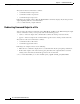
The following example displays how the system completes a partial (unique) command for the enable
command. The system carries out the command using the default authorization level (10) when you press
Enter.
SCE8000>en <Enter>
Password:
SCE8000#
Example: 2
The following example illustrates how to use the completion feature with a non-default value for the
argument. In this example, the enable command is completed using the specified value (15) for the
authorization level.
SCE8000>en 15 <Enter>
Password:
SCE8000#
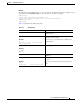
Delete from the cursor position to the end of the word. ESC-d
Delete the character before the current location of the cursor. Backspace
Delete the character before the current location of the cursor. CTRL-H
Deletes from the cursor position to the end of the line CTRL-K
Deletes all characters from the cursor to the beginning of the line CTRL-U
Delete the word to the left of the cursor. CTRL-W
Recall the last item deleted. CTRL-Y
Completes the word when there is only one possible completion. <Tab>
Completes the word when there is only one possible completion. (Same
functionality as <Tab>.)
CTRL-I
Table 1-8 Keyboard Shortcuts (continued)
Description Shortcut key