
User Manual

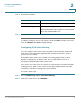

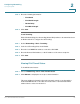
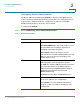

Table Of Contents
- Introduction
- Configuring Networking
- Configuring the Wireless Network
- Configuring the Firewall
- Configuring VPN
- Configuring Quality of Service (QoS)
- Administering Your Cisco RV110W
- Setting Password Complexity
- Configuring User Accounts
- Setting the Session Timeout Value
- Configuring Simple Network Management (SNMP)
- Using Diagnostic Tools
- Configuring Logging
- Configuring Bonjour
- Configuring Date and Time Settings
- Backing Up and Restoring the System
- Upgrading Firmware or Change the Language
- Restarting the Cisco RV110W
- Restoring the Factory Defaults
- Running the Setup Wizard
- Viewing the Cisco RV110W Status
- Using Cisco QuickVPN
- Where to Go From Here

Configuring Networking
Configuring IPv6
Cisco RV110W Administration Guide 52
2
STEP 3 Enter this information:
STEP 4 Click Save.
To edit the settings of a pool, select the pool and click Edit. To delete a selected
pool, click Delete. Click Save to apply changes.
Configuring IPv6 Static Routing
You can configure static routes to direct packets to the destination network. A
static route is a predetermined pathway that a packet must travel to reach a
specific host or network.
Some ISPs require static routes to build your routing table instead of using
dynamic routing protocols. Static routes do not require CPU resources to
exchange routing information with a peer router.
You can also use static routes to reach peer routers that do not support dynamic
routing protocols. Static routes can be used together with dynamic routes. Be
careful not to introduce routing loops in your network.
To create a static route:
STEP 1 Choose Networking > IPv6 > IPv6 Static Routing.
STEP 2 In the list of static routes, click Add Row.
Start Address Enter the starting IPv6 address of the pool.
End Address Enter the ending IPv6 address of the pool.
IPv6 Prefix Length Enter the prefix length.
This field determines the number of common initial
bits in the network addresses.