
User Manual
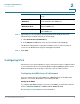

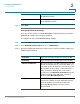
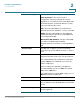

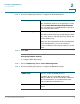
Table Of Contents
- Introduction
- Configuring Networking
- Configuring the Wireless Network
- Configuring the Firewall
- Configuring VPN
- Configuring Quality of Service (QoS)
- Administering Your Cisco RV110W
- Setting Password Complexity
- Configuring User Accounts
- Setting the Session Timeout Value
- Configuring Simple Network Management (SNMP)
- Using Diagnostic Tools
- Configuring Logging
- Configuring Bonjour
- Configuring Date and Time Settings
- Backing Up and Restoring the System
- Upgrading Firmware or Change the Language
- Restarting the Cisco RV110W
- Restoring the Factory Defaults
- Running the Setup Wizard
- Viewing the Cisco RV110W Status
- Using Cisco QuickVPN
- Where to Go From Here

Configuring Networking
Viewing the Routing Table
Cisco RV110W Administration Guide 43
2
Viewing the Routing Table
The routing table contains information about the topology of the network
immediately around it.
To view the routing information on your network, choose Networking > Routing
Table and choose one of the following:
• Show IPv4 Routing Table—The routing table is displayed with the fields
configured in the Networking > Routing page.
• Show IPv6 Routing Table—The routing table is displayed with the fields
configured in the Networking > IPv6 pages.
Configuring Dynamic DNS
Dynamic DNS (DDNS) is an Internet service that allows routers with varying public
IP addresses to be located using Internet domain names. To use DDNS, you must
set up an account with a DDNS provider such as DynDNS.com, TZO.com,
3322.org, or noip.com.
The router notifies dynamic DNS servers of changes in the WAN IP address, so
that any public services on your network can be accessed by using the domain
name.
To configure DDNS:
STEP 1 Choose Networking > Dynamic DNS.
STEP 2 From the DDNS Service drop-down menu, choose Disable to disable this service
or choose the DDNS service to use.
STEP 3 If you do not have a DDNS account, click the URL of the service to visit the
selected DDNS service's website so that you can create an account.
STEP 4 Configure this information:
E-mail Address (TZO.com and noip.com) Enter the email address
you used to create the DDNS account.
Username (DynDNS.com and 3322.org) Enter the username of
the DDNS account.