
User Manual
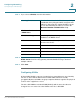
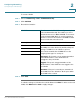

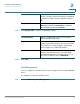

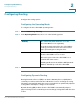
Table Of Contents
- Introduction
- Configuring Networking
- Configuring the Wireless Network
- Configuring the Firewall
- Configuring VPN
- Configuring Quality of Service (QoS)
- Administering Your Cisco RV110W
- Setting Password Complexity
- Configuring User Accounts
- Setting the Session Timeout Value
- Configuring Simple Network Management (SNMP)
- Using Diagnostic Tools
- Configuring Logging
- Configuring Bonjour
- Configuring Date and Time Settings
- Backing Up and Restoring the System
- Upgrading Firmware or Change the Language
- Restarting the Cisco RV110W
- Restoring the Factory Defaults
- Running the Setup Wizard
- Viewing the Cisco RV110W Status
- Using Cisco QuickVPN
- Where to Go From Here

Configuring Networking
Configuring Routing
Cisco RV110W Administration Guide 40
2
Configuring Routing
Configure the routing options.
Configuring the Operating Mode
To configure the Cisco RV110W operating mode:
STEP 1 Choose Networking > Routing.
STEP 2 In the Operating Mode field, select one of the following options:
STEP 3 Click Save.
Configuring Dynamic Routing
Routing Information Protocol (RIP) is an Interior Gateway Protocol (IGP) that is
commonly used in internal networks. It allows the router to exchange its routing
information automatically with other routers, and allows it to dynamically adjust its
routing tables and adapt to changes in the network.
Dynamic Routing (RIP) enables the Cisco RV110W to automatically adjust to
physical changes in the network layout and exchange routing tables with the other
routers.
Gateway (Recommended) Click this button to set the
Cisco RV110W to act as a gateway.
Keep this default setting if the Cisco RV110W is
hosting your network connection to the Internet
and is performing the routing functions.
Router (For advanced users only) Click this button to set
the Cisco RV110W to act as a router.
Select this option if the Cisco RV110W is on a
network with other routers.
Enabling the Router mode disables NAT (Network
Address Translation) on the Cisco RV110W.