
User Manual

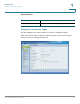
Table Of Contents
- Introduction
- Configuring Networking
- Configuring the Wireless Network
- Configuring the Firewall
- Configuring VPN
- Configuring Quality of Service (QoS)
- Administering Your Cisco RV110W
- Setting Password Complexity
- Configuring User Accounts
- Setting the Session Timeout Value
- Configuring Simple Network Management (SNMP)
- Using Diagnostic Tools
- Configuring Logging
- Configuring Bonjour
- Configuring Date and Time Settings
- Backing Up and Restoring the System
- Upgrading Firmware or Change the Language
- Restarting the Cisco RV110W
- Restoring the Factory Defaults
- Running the Setup Wizard
- Viewing the Cisco RV110W Status
- Using Cisco QuickVPN
- Where to Go From Here

Introduction
Using the Getting Started Page
Cisco RV110W Administration Guide 17
1
Initial Settings
Quick Access
Device Status
Change Default
Administrator Password
Click to open the Users page where you can
change the administrator password. See
Configuring User Accounts.
Launch Setup Wizard Click to launch the Setup Wizard.
Configure WAN Settings Click to open the Internet Setup page. See
Configuring the WAN Settings.
Configure LAN Settings Click this link to open the LAN Configuration page.
See Configuring the LAN Settings.
Configure Wireless
Settings
Click to open the Basic Settings page. See
Configuring Basic Wireless Settings.
Upgrade Router
Firmware
Click to open the Firmware/Language Upgrade
page. See Upgrading Firmware or Change the
Language.
Add VPN Clients Click to open the VPN Clients page. See VPN
Clients.
Configure Remote
Management Access
Click to open the Basic Settings page. See
Configuring Basic Firewall Settings.
System Summary Click to open the System Summary page. See
Viewing the System Summary.
Wireless Status Click to open the Wireless Statistics page. See
Viewing the Wireless Statistics.
VPN Status Click to open the VPN Status page. See Viewing
the VPN Status.