
User Manual

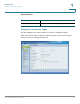
Table Of Contents
- Introduction
- Configuring Networking
- Configuring the Wireless Network
- Configuring the Firewall
- Configuring VPN
- Configuring Quality of Service (QoS)
- Administering Your Cisco RV110W
- Setting Password Complexity
- Configuring User Accounts
- Setting the Session Timeout Value
- Configuring Simple Network Management (SNMP)
- Using Diagnostic Tools
- Configuring Logging
- Configuring Bonjour
- Configuring Date and Time Settings
- Backing Up and Restoring the System
- Upgrading Firmware or Change the Language
- Restarting the Cisco RV110W
- Restoring the Factory Defaults
- Running the Setup Wizard
- Viewing the Cisco RV110W Status
- Using Cisco QuickVPN
- Where to Go From Here
Introduction
Using the Getting Started Page
Cisco RV110W Administration Guide 16
1
The default user name is cisco. The default password is cisco. Passwords are
case sensitive.
STEP 5 Click Log In. The Setup Wizard starts.
STEP 6 Follow the on-screen instructions to set up the Cisco RV110W.
The Setup Wizard tries to automatically detect and configure your connection. If it
cannot, the Setup Wizard may ask you for information about your Internet
connection. You may need to contact your ISP to obtain this information.
NOTE: When using the Setup Wizard, you can only set up one wireless network, or
SSID. The Cisco RV110W supports up to four wireless networks. If you want to
configure additional wireless networks, use the web-based Device Manager. See
Configuring the Wireless Network.
After the Setup Wizard is done configuring the Cisco RV110W, you are required to
change the default password. We recommend that you use password complexity;
see Setting Password Complexity.
After changing the default password, the Getting Started page appears. See
Using the Getting Started Page for more information.
Using the Getting Started Page
The Getting Started page displays the most common Cisco RV110W
configuration tasks. Use the links on this page to jump to the relevant configuration
page.
By default, this page appears when you start the Device Manager. However, you
can change this behavior by checking Don’t show on start up at the bottom of the
page.