
User Manual

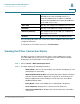
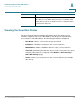
Table Of Contents
- Introduction
- Configuring Networking
- Configuring the Wireless Network
- Configuring the Firewall
- Configuring VPN
- Configuring Quality of Service (QoS)
- Administering Your Cisco RV110W
- Setting Password Complexity
- Configuring User Accounts
- Setting the Session Timeout Value
- Configuring Simple Network Management (SNMP)
- Using Diagnostic Tools
- Configuring Logging
- Configuring Bonjour
- Configuring Date and Time Settings
- Backing Up and Restoring the System
- Upgrading Firmware or Change the Language
- Restarting the Cisco RV110W
- Restoring the Factory Defaults
- Running the Setup Wizard
- Viewing the Cisco RV110W Status
- Using Cisco QuickVPN
- Where to Go From Here

Viewing the Cisco RV110W Status
Viewing the GuestNet Status
Cisco RV110W Administration Guide 147
8
Viewing the GuestNet Status
The guest network statistics displays information about the wireless guest
network configured on the Cisco RV110W. To view the guest network status,
choose Status > GuestNet Status. The following information is displayed:
• Host Name—Device connected to the guest network.
• IP Address—IP address assigned to the connected device.
• MAC Address—MAC or hardware address of the connected device.
• Time Left—Remaining time that the device can be connected to the guest
network. (Time limits are configured in the Wireless > Basic Settings >
Guest Net Settings page.)
• Action—Actions you can perform on the connected device (for example,
disconnect).
Multicast The number of multicast packets sent over this radio.
Collisions The number of signal collisions that occurred on this port.
A collision occurs when the port tries to send data at the
same time as a port on another router or computer that is
connected to this port.