
User Manual

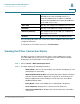
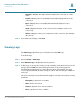
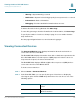
Table Of Contents
- Introduction
- Configuring Networking
- Configuring the Wireless Network
- Configuring the Firewall
- Configuring VPN
- Configuring Quality of Service (QoS)
- Administering Your Cisco RV110W
- Setting Password Complexity
- Configuring User Accounts
- Setting the Session Timeout Value
- Configuring Simple Network Management (SNMP)
- Using Diagnostic Tools
- Configuring Logging
- Configuring Bonjour
- Configuring Date and Time Settings
- Backing Up and Restoring the System
- Upgrading Firmware or Change the Language
- Restarting the Cisco RV110W
- Restoring the Factory Defaults
- Running the Setup Wizard
- Viewing the Cisco RV110W Status
- Using Cisco QuickVPN
- Where to Go From Here

Viewing the Cisco RV110W Status
Viewing the Wireless Statistics
Cisco RV110W Administration Guide 141
8
• SSID 4—The public name of the fourth wireless network.
- Security—The security setting for SSID 4.
Firewall Setting Status
• Dos (Denial of Service)—Whether DoS prevention is on or off.
• Block WAN Request—Whether WAN request blocking is on or off.
• Remote Management—Whether remote management is on or off (for
example, if the Cisco RV110W Device Manager can be accessed remotely).
VPN Setting Status
• QuickVPN Connections Available—The number of available QuickVPN
connections.
• PPTP VPN Connections Available—The number of available PPTP VPN
connections.
• Connected QuickVPN Users—The number of connected QuickVPN users.
• Connected PPTP VPN Users—The number of connected PPTP VPN
users.
Viewing the Wireless Statistics
The Wireless Statistics page shows a cumulative total of relevant wireless
statistics for the radio on the device.
To v i e w w i r e l e s s s t a t i s t i c s :
STEP 1 Choose Status > Wireless Statistics.
STEP 2 From the Refresh Rate drop-down menu, choose a refresh rate.
STEP 3 (Optional) By default, byte data is displayed in bytes and other numerical data is
displayed in long form. To show the bytes in kilobytes (KB) and the numerical data
in rounded up form, check Show Simplified Statistic Data and click Save.
STEP 4 To reset the wireless statistics counters, click Clear Count.