
User Manual
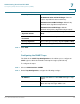
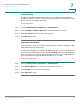
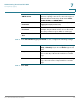
Table Of Contents
- Introduction
- Configuring Networking
- Configuring the Wireless Network
- Configuring the Firewall
- Configuring VPN
- Configuring Quality of Service (QoS)
- Administering Your Cisco RV110W
- Setting Password Complexity
- Configuring User Accounts
- Setting the Session Timeout Value
- Configuring Simple Network Management (SNMP)
- Using Diagnostic Tools
- Configuring Logging
- Configuring Bonjour
- Configuring Date and Time Settings
- Backing Up and Restoring the System
- Upgrading Firmware or Change the Language
- Restarting the Cisco RV110W
- Restoring the Factory Defaults
- Running the Setup Wizard
- Viewing the Cisco RV110W Status
- Using Cisco QuickVPN
- Where to Go From Here

Administering Your Cisco RV110W
Using Diagnostic Tools
Cisco RV110W Administration Guide 122
7
STEP 3 Click Save.
Using Diagnostic Tools
The Cisco RV110W provides several diagnostic tools to help you troubleshoot
network problems.
• Network Tools
• Configuring Port Mirroring
Network Tools
Use network tools to troubleshoot the network.
Using PING
You can use the PING utility to test connectivity between this router and another
device in the network. You can also use the Ping tool to test connectivity to the
Internet by pinging a fully qualified domain name (for example, www.cisco.com).
To u s e P I N G :
STEP 1 Choose Administration > Diagnostics > Network Tools.
STEP 2 In the IP Address / Domain Name field, enter the device IP address or a fully
qualified domain name such as www.cisco.com to ping.
STEP 3 Click Ping. The ping results appear. These results tell you whether the device is
reachable.
STEP 4 Click Close when done.
Community Enter the community string to which the agent
belongs.
Most agents are configured to listen for traps in the
Public community.
SNMP Version Select the SNMP version: v1, v2c, or v3.