
Maintenance Manual

Record Server Configuration
VoIP Devices
78
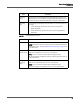
NOTE: You can type wildcard characters (* or ?) or specific numbers in
the Matches field. This field is case sensitive.
S
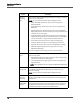
TEP RESULT: A list of all of the devices that are in the cluster appears.
If a device has two extensions associated with it, two entries appear in the search
results table. If you select the Enabled check box for one extension, Quality
Management Administrator also selects the other extension.
3. To sort by a particular column, click the column heading.
4. Choose one of the following options:
– To select a specific device, click its row.
– To select additional devices, press and hold the Ctrl key while clicking the
other rows.
5. When you are done selecting devices, click Check Selected, and then click OK.
A
DDITIONAL INFORMATION: If there were several monitoring and recording servers,
you would need to assign them to the devices manually.
S
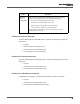
TEP RESULT: The devices you selected appear on the list of VoIP devices
Notice that Quality Management has automatically assigned monitoring and
recording services to these devices.
Filtering VoIP Devices
TASK
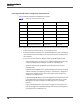
1. On the VoIP Devices window, choose the type of device you want to locate from the
Find devices of type drop-down list. Your choices are:
– All Types
–Phone
– Remote Agent Port
–User Profiles
2. Choose the IP address for the cluster from the In Cluster drop-down list.
3. Enter the name of the device or extension for the device in the Where drop-down
list.
A
DDITIONAL INFORMATION: You can use wildcards * and question marks ? in this field,
in addition to a specific string.