
Maintenance Manual

Recordings
Evaluation Forms
144
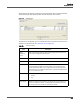
In this example:
• Greet section = 60% x 0.4 = 24%
• Assess section = 80% x 0.6 =48%
• 24% + 48% =72% overall score
Managing Sections
TASK
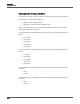
• To add a new section, click New under the Sections tab, type a name
for the new section, and then click OK. Enter a score weight for the
section, and then click Save.
S
TEP RESULT: The Question tab appears the first time you add a new section.
• To edit a score weight for a section, double-click the score weight
percentage field, delete the number that is already in the field by
pressing the Delete key, then type the new weight.
• To rename a section, select the section, click Rename, type the new
name in the Section Name dialog box, and then click OK.
• To delete a section, select the section and click Delete, click Yes to
dismiss the Delete Section dialog box, and then click Save.
A
DDITIONAL INFORMATION: After you delete a section, you must change the score
weights of the remaining sections so that they once again add up to 100%.
Questions Tab
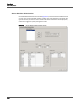
The Questions tab allows you to:
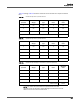
• Enter up to 100 questions per form with a limit of ten sections per form.
• Enter a combined maximum of 500 characters in the Question and Description
fields.
• Use a combination of answer of Yes/No or 0-5 scale questions. For example,
your evaluation can include not only Yes/No questions about an agent’s
mandatory skills but also 0-5 questions about the agent’s soft skills.
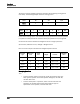
• Adjust the weight of each question. You can specify a weight up to two decimal
places (for example, 12.55%) or you can assign the same weight to each
question by clicking the Weigh Questions Evenly button. The weights of all the
questions in a section must add up to 100%. See “Understanding How
Sections are Weighted” on page 143.
If you used the Blank Template, you must create your own questions.