
Release Notes




5
Release Notes for Cisco SocialMiner Release 8.5(4) October 17, 2011
New and Changed Features
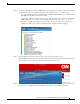
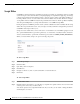
Step 6 For websites with RSS feeds, the SocialMiner window opens. This window captures all feeds on the page
and filters them with icons indicating whether they are “standard feeds” or “possible” feeds.
• A green checkmark displays for standard feeds. SocialMiner qualifies RSS feeds as “standard” when
their URLs are indicated as such by the website.
• A blue question mark indicates that the feed is possibly an RSS feed, but may not be. SocialMiner
qualifies RSS feeds as “possible” when their URLs simply contain “rss”, “atom”, or “feed”.
Note that some URLs may be filtered out of the list even if they meet the above criteria—for
example
, they will not be captured and displayed if they include embedded scripting.
Step 7 Click the link that you want to add as a feed. Log in if you are prompted to do so.
The SocialMiner window updates to indicate
that the feed was saved, along with the Name and URL of
the feed. You see an error message if there was a problem saving the feed.
Step 8 Close and re-open the Feed Bookmarklet for each URL in the list that you want to save. You see an error
if you try to save a duplicate feed (a feed with the same Name as one that is already saved).