
Troubleshooting Guide
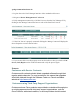
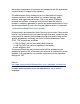

6. V erify that the file has been properly ex tracted to the /store directory w ith the
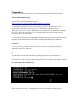
follow ing command:
l s
Y ou should see CAM S igP atch.sh listed under the /store directory.
I f you do not see this file please verify that steps 1-5 in this section completed properly.
NAC Manager (CAM) Repair:
1. S S H to the NAC M anager ( Active CAM for H A setup) .
U se the follow ing command to verify that you are logged into the Active NAC M anager:
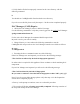
/ p e r f i g o / c o m m o n/ b i n/ f o s t a t e . s h
F or the Active NAC M anager the command should respond w ith:
M y node is active, peer node is standby
2 . Change directory to /store and use the follow ing commands to start the
CAM S igP atch.sh script on the Active NAC M anager from the /store folder as follow s:
c d / s t o r e
. / C A M S i g P a t c h . s h
3 . E x ecuting the above command returns one of the follow ing:
I f the NAC M anager w as not impacted you w ill receive the follow ing message:
" T h i s C A M i s no t a f f e c t e d b y t h e b a d O S f i ng e r p r i nt s i g na t u r e ! "
No other action is req uired for this appliance. P lease continue to check remaining NAC
components.
I f your NAC M anager w as impacted you w ill receive the follow ing message:
“ T h i s C A M i s a f f e c t e d b y t h e b a d O S f i ng e r p r i nt !
D o y o u w a nt t o c o nt i nu e t o c l e a n t h e b a d O S f i ng e r p r i nt o n t h i s C A M ? ( y / n) ? [ y ] ? ”
Note: I f you do not see either message please verify that steps 1-6 in the P reparation
section above completed properly.
4. E nter ‘ y ’ at the prompt to continue, enter ‘ n’ to abort this procedure.
5 . T he console w ill display ‘ C l e a ni ng s u c c e s s f u l l y c o m p l e t e d ’ follow ing ex ecution of
the script and cleanup of the NAC M anager.