
User guide



9
Basic—Place a Call
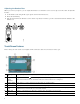
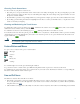
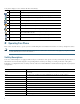
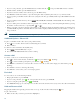
To place a call, use one of the following methods:
• Lift the handset and dial the number.
• Dial the number, and then lift the handset.
• Dial the number, and then press the Dial soft key.
• Press the line button for your extension, and then dial.
• Press the Speaker button, and then dial.
• Press the New Call soft key, and then dial.
DnD Enables the Do-Not-Disturb feature.
Down Decreases the LCD screen contrast.
EditDial Selects the number and activates the cursor for editing.
EndCall Ends the current call.
Exit Exits from the current selection.
Flash Provides hookflash functionality for three-way calling and call waiting services
provided by the PSTN or Centrex service.
GPickUp Selectively pick up calls coming into a phone number that is a member of a pickup
group.
Hold Places active call on hold. Resumes an on hold call.
Login Provides PIN-controlled access to restricted phone features. Contact your local system
administrator for additional information.
LiveRcd Enables the user to record a phone conversation.
MeetMe Starts a new MeetMe conferences
more Scrolls through additional soft key options (for example, use the more soft key to locate
the DnD soft key).
NewCall Opens a new line on a speakerphone to a place call.
Ok Confirms a selection.
Park Forwards calls to a location from which a call can be retrieved by anyone in the system.
PickUp Selectively picks up calls coming into another extension.
Play Plays ring sound samples.
Redial Redials the last number dialed.
Remove Removes a conference participant
RmLstC Removes the Last Participant from the Conference Call.
Resume Returns to the active call.
Save Saves the last change.
Search Initiates a search in the local directory.
Select Selects the highlighted option.
Trnsfer Transfers active calls to another extension.
TrnsfVM Transfers a call to voice mail.
Up Increases LCD screen contrast.
Update Updates content.
Soft Key Function