
User guide

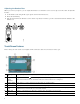

3
3
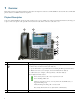
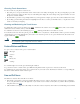
Display button Awakens the touch screen from sleep mode or disables it for cleaning.
No color: Ready for input
Green flashing: Disabled
Green steady: Sleep mode
4
Messages button Autodials your voice message service.
5
Directories button Provides access to phone directories.
6
Help button Activates Help menu (not supported).
7
Settings button Provides access to phone settings to change touch screen and ring settings.
8
Services button Provides access to phone services.
9
Volume button Increases or decreases handset, headset, ringer, or speakerphone volume.
10
Speaker button Toggles speaker on and off.
11
Mute button Toggles mute on and off.
12
Headset button Toggles headset on and off.
13
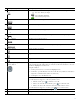
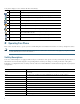
4-way navigation pad and select
(center) button
Allows you to scroll through menus and highlight items, displays phone numbers
from your Placed Calls, when phone is on-hook. Use the Select button to select an
item that is highlighted on the screen.
Navigation button
• Scroll up and down to see menus and highlight items.
• Scroll left to open the Details view and see the directory numbers and features
assigned to each line button (when on call screen).
• Scroll right to close the Details view.
Select button- Scroll to select a line using the Navigation button, then:
• If the button is mapped to a directory number, and:
–
The line is idle, press to initiate a new call.
–
There is an on-hold call on the line, press to resume the call.
–
There is an active call on the line, the Select button has no effect.
• If the button is mapped to a feature, press to access the feature.
14
Keypad Functions like a traditional telephone keypad.
15
Soft keys buttons Engages the functions displayed on the corresponding LCD tabs.
Name (continued) Description (continued)