
User guide




15
–
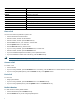
If a phone that is using the shared line has Privacy enabled, call information and Barge/cBarge soft keys do not appear
on the other phones that share the line.
Hold a Shared-Line Call (SIP)
User can put calls on a shared line on hold like calls on a non shared line.
To place a call on hold while on a shared-line call:
• Highl
ight the call that you want to put on hold.
• Press th
e Hold soft key.
Resume a Shared Line Call (SIP)
User can resume a non-private call placed on hold on a shared line call.
To resume a shared line call:
1. Highl
ight the call that you want to resume.
2. Press Resume
to resume the call.
Tip
–
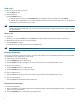
When a shared-line call is placed on hold, a flashing green shared line button notifies all the other phones with the
shared-line directory number that the call can be resumed.
Enable Privacy on Shared-Line (SIP)
Users can prevent others from viewing, barging, or resuming a Shared-Line Call by enabling the privacy feature on the phone.
To prevent other from viewing or barging call
s:
1. Press
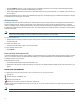
the privacy line button .
2. T
he private icon next to an amber line button verifies that privacy is on.
3. Press
the privacy button again to disable privacy.
Tips
–
The privacy button is not displayed on the shared-line phone by default. Your system administrator must enable privacy
button on a per phone basis.
–
Privacy is enabled by default for shared-lines. Your system administrator can change the default privacy setting globally
or on a per phone basis.
–
Calls placed on hold with privacy enabled have privacy disabled by default. Your system administrator can change the
default privacy on hold setting globally.
Place a Call from Your Local Directory
To access the local phone directory established by your system administrator:
1. Press th
e Directories button.
2. Press th
e Navigation Up or Down button or press 4 to select the Local Directory.
3. Press th
e Navigation Up or Down button to select the Last, First, or Number field search option.
4. Using
the keypad, enter the last name or first name for the entry.
When entering letters, select the appropriate number key of the letter you want, and press that key a number
of times that
equals the position of the target letter. For example, to enter a B, press the 2 key two times, and to enter a C, press the 2
key three times. Use the backspace (<<) soft key to make corrections when entering data.
5. Press th
e Search soft key to find your selection.
6. If
your search results in multiple listings, use the Navigation Up or Down button to select the correct number.