
Installation guide

2-22
Catalyst 3560 Switch Hardware Installation Guide
OL-6337-03
Chapter 2 Switch Installation
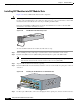
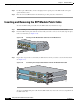
Connecting to SFP Modules
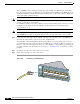
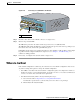
Figure 2-19 Connecting to a Fiber-Optic SFP Module Port
Step 5
If necessary, reconfigure and restart the switch or target device.
Connecting to 1000BASE-T SFP Modules
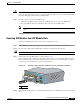
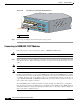
Follow these steps to connect a Category 5 cable to a 1000BASE-T SFP module:
Caution To prevent ESD damage, follow your normal board and component handling procedures.
Step 1 When connecting to servers, workstations, and routers, insert a four twisted-pair, straight-through cable
in the RJ-45 connector. When connecting to switches or repeaters, insert a four twisted-pair, crossover
cable.
Note When connecting to a 1000BASE-T device, be sure to use a four twisted-pair, Category 5 cable.
Note You can use the mdix auto interface configuration command in the CLI to enable the automatic
medium-dependent interface crossover (Auto-MDIX) feature. When the Auto-MDIX feature is enabled,
the switch detects the required cable type for copper Ethernet connections and configures the interfaces
accordingly. Therefore, you can use either a crossover or a straight-through cable for connections to a
copper 10/100, 10/100/1000, or 1000BASE-T SFP module port on the switch, regardless of the type of
device on the other end of the connection.
The Auto-MDIX feature is enabled by default on switches running Cisco IOS Release 12.2(18)SE or
later. For releases between Cisco IOS Release 12.1(14)EA1 and 12.2(18)SE, the Auto-MDIX feature is
disabled by default. For configuration information for this feature, see the switch software configuration
guide or the switch command reference.
1 LC connector
40
41
42
43
44
45
46
47
48
4
7
X
4
8
X
Catalyst 3560
S
E
R
IE
S
PoE-48
1
2
3
4
97931
1