
Installation guide


1-15
Catalyst 3560 Switch Hardware Installation Guide
OL-6337-03
Chapter 1 Product Overview
Management Options
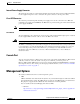
Internal Power Supply Connector
The internal power supply is an autoranging unit that supports input voltages between 100 and 240 VAC.
Use the supplied AC power cord to connect the AC power connector to an AC power outlet.
Cisco RPS Connector
The switch is powered through the internal power supply. You can also connect the Cisco RPS 675
redundant power supply (model PWR675-AC-RPS-N1=) to provide backup power if the switch internal
power supply should fail.
Note The Catalyst 3560 switch and the Cisco RPS 675 should be connected to the same AC power source.
Cisco RPS 675
The Cisco RPS 675 as two output levels: –48 V and 12 V, with a total maximum output power of 675 W.
Use the supplied RPS connector cable to connect the RPS to the switch.
Warning
Attach only the Cisco RPS (model PWR675-AC-RPS-N1) to the RPS receptacle.
Statement 100C
The RPS is a redundant power system that can support six external network devices and provides power
to one failed device at a time. It automatically senses when the internal power supply of a connected
device fails and provides power to the failed device, preventing loss of network traffic. For more
information on the Cisco RPS 675, see the Cisco RPS 675 Redundant Power System Hardware
Installation Guide.
Console Port
You can connect the switch to a PC by means of the console port and the supplied RJ-45-to-DB-9 female
cable. If you want to connect the switch console port to a terminal, you need to provide an
RJ-45-to-DB-25 female DTE adapter. You can order a kit (part number ACS-DSBUASYN=) containing
that adapter from Cisco. For console port and adapter pinout information, see the “Connector and Cable
Specifications” section on page B-1.
Management Options
The Catalyst 3560 switches offer several management options:
• CMS
CMS is a GUI that can be launched from anywhere in your network through a web browser. CMS is
already bundled in the switch. The CMS plug-in is required to run CMS through your web browser.
The plug-in is supported both in Windows environments and on Solaris platforms.
You can download the latest CMS plug-in from these URLs:
–
Windows
http://www.cisco.com/pcgi-bin/Support/ClusterMgmtSuite/cms_plugin_redirect.cgi?platform
=windows&version=1.2