
User manual




22 OL-4637-03
Transferring a Connected Call
Transfer redirects a connected call. The target is the number to which you want to transfer the call.
Tips
• When on-hook transfer is enabled, you can either hang up or press Transfer, then hang up.
• If on-hook transfer is not enabled on your phone, be aware that hanging up instead of pressing
Transfer cancels the transfer action and places the party to be transferred on hold.
• You cannot use Transfer to redirect a call on hold. Press Transfer to remove the call from hold
before transferring it.
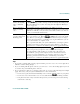
If you want to... Then...
Transfer a call without
talking to the transfer
recipient
Press Transfer and enter the target number. When you hear the call
ringing, hang up.
If your system administrator did not enable on-hook transfer, you must
press Transfer again to complete the transfer. To cancel the transfer,
press EndCall.
Talk to the transfer
recipient before transferring
a call (consult transfer)
Press Transfer and enter the target number. Wait for the transfer
recipient to answer. If the recipient accepts the transferred call, press
Transfer again. If the recipient refuses the call, press Resume to return
to the original call.
If your system administrator did not enable on-hook transfer, you must
press Transfer again to complete the transfer. To cancel the transfer,
press EndCall.
Transfer two current calls
to each other (direct
transfer)
Scroll to highlight any call on the line and press Select. Repeat this
process for the second call. With one of the selected calls highlighted,
press DirTrfr. (You might need to press more to see DirTrfr.) The two
calls connect to each other and drop you from the call.
If you want to stay on the line with the callers, use Join to create a
conference instead. For details, see the “Making Conference Calls”
section on page 24.