
Getting Started Guide

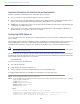


Table Of Contents
- Cisco Catalyst 9130AX Series Access Points
- 1 About this Guide
- 2 About the Cisco Catalyst 9130AX Series Wireless Access Point
- 3 Safety Instructions
- 4 Unpacking
- 5 AP Views, Ports, and Connectors
- 6 Preparing the AP for Installation
- 7 Installation Overview
- 8 Performing a Pre-Installation Configuration
- 9 Mounting the Access Point
- 10 Grounding the Access Point
- 11 Powering the Access Point
- 12 Configuring and Deploying the Access Point
- 13 Self-Identifying Antennas
- 14 Checking the Access Point LEDs
- 15 Miscellaneous Usage and Configuration Guidelines
- 16 FAQs
- 18 Declarations of Conformity and Regulatory Information
- 17 Related Documentation
- Manufacturers Federal Communication Commission Declaration of Conformity Statement
- VCCI Statement for Japan
- Guidelines for Operating Cisco Catalyst Access Points in Japan
- Statement 371—Power Cable and AC Adapter
- Industry Canada
- Canadian Compliance Statement
- European Community, Switzerland, Norway, Iceland, and Liechtenstein
- Declaration of Conformity for RF Exposure
- Generic Discussion on RF Exposure
- This Device Meets International Guidelines for Exposure to Radio Waves
- This Device Meets FCC Guidelines for Exposure to Radio Waves
- This Device Meets the Industry Canada Guidelines for Exposure to Radio Waves
- Cet appareil est conforme aux directives internationales en matière d'exposition aux fréquences radioélectriques
- Additional Information on RF Exposure
- Administrative Rules for Cisco Catalyst Access Points in Taiwan
- Operation of Cisco Catalyst Access Points in Brazil
- Declaration of Conformity Statements
- Communications, Services, and Additional Information
- Cisco Bug Search Tool

32
Cisco Catalyst 9130AX Series Access Points
Important Information for Controller-based Deployments
Keep these guidelines in mind when you use C9130AX series access point:
The access point can only communicate with Cisco wireless controllers.
The access point does not support Wireless Domain Services (WDS) and cannot communicate with WDS devices.
However, the controller provides functionality equivalent to WDS when the access point joins it.
CAPWAP does not support Layer 2. The access point must get an IP address and discover the controller using Layer
3, DHCP, DNS, or IP subnet broadcast.
The access point console port is enabled for monitoring and debug purposes. All configuration commands are
disabled when the access point is connected to a controller.
Configuring DHCP Option 43
You can use DHCP Option 43 to provide a list of controller IP addresses to the access points, enabling them to find and
join a controller.
The following is a DHCP Option 43 configuration example on a Windows 2003 Enterprise DHCP server for use with Cisco
Catalyst lightweight access points. For other DHCP server implementations, consult product documentation for
configuring DHCP Option 43. In Option 43, you should use the IP address of the controller management interface.
Note DHCP Option 43 is limited to one access point type per DHCP pool. You must configure a separate DHCP
pool for each access point type.
The C9130AX series access point uses the type-length-value (TLV) format for DHCP Option 43. DHCP servers must be
programmed to return the option based on the access point DHCP Vendor Class Identifier (VCI) string (DHCP Option 43).
The VCI string for the C9130AX series access point is:
Cisco AP C9130AX
The format of the TLV block is listed below:
Type—0xf1 (decimal 241)
Length—Number of controller IP addresses * 4
Value—IP addresses of the WLC management interfaces listed sequentially in hex
To configure DHCP Option 43 in the embedded Cisco IOS DHCP server, follow these steps:
Step 1 Enter configuration mode at the Cisco IOS CLI.
Step 2 Create the DHCP pool, including the necessary parameters such as default router and name server. A DHCP
scope example is as follows:
ip dhcp pool <pool name>
network <IP Network> <Netmask>
default-router <Default router>
dns-server <DNS Server>
Where:
<pool name> is the name of the DHCP pool, such as AP9130AX
<IP Network> is the network IP address where the controller resides, such as 10.0.15.1
<Netmask> is the subnet mask, such as 255.255.255.0
<Default router> is the IP address of the default router, such as 10.0.0.1