
User's Manual






7
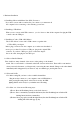
(8) Click "Finish" on last screen then the drivers will be installed completely.
3. Uninstall Program
Mouse Software can be removed from Windows (except Windows 3.1x) by
clicking the Add/Remove Programs icon in the Control Panel or clicking
the "Uninstall" icon in the folder that setup.exe created in "Programs"
of "Start" button on Windows desktop.
Select Mouse Software installed and click the "Remove" button.
Windows 9x, Windows NT4.0, Windows 2000 and Windows ME:
Mouse software will be removed from the system if setup finds
alternate compatible drivers for a device in MSMOUSE.INF.
Should this not be the case you can manually change the driver
to another one as described in section 2-5.
4.Trouble Shooting
4-1.Moving problems
4-1-1.First please avoid to the following places for the proper installation.
1) The direct rays of the sun
2) Hot, cold, dusty, moisture or unstable places
3) Under the magnetic force.
4) Near fax machine, TV sets, radio, cellular phones and other RF products
5) On metal board
4-1-2.Check the following notes for moving precisely.
1) Install the driver properly
2) Examine the distance between receiver and transmitter
3) Check the power source of the battery in transmitter and the receiver is
plugged in computer properly
4) Select the right ID (see 1-4. Select and Set ID)
4-1-3.Too much interfere
1) Change the location of receiver
2) Put the unit at a certain distance from high voltage and other electronic
equipments.
3) Select the other ID (see 1-4. Select and Set ID)
4-1-4.Wheel operating problems
1) Verify that the "Browser Mouse" or "Mouse Control Panel" application is