
User`s manual




User’s Manual
21
3.3 Configuration Menu
The detailed functions and parameter settings for your PTZ Camera can be set in the
OSD (On Screen Display) menu using a control unit, such as a control keyboard
(ZCA-SC201). The functions in the OSD menu on the 18×, 22×, 23×, 26× and 35×
models are described in the following sections.
To enter the OSD menu for the selected camera, press the <CAMERA MENU>
button on the control keyboard and hold for 3 seconds to enter the OSD menu.
To select the setup option, use the direction keys on the keyboard to move the
cursor in the OSD menu.
To set an item, use the direction keys on the keyboard to move the cursor in the OSD
menu. For items with →, press the right/left direction buttons on the control keyboard
to select. For items with ↓, press the <CAMERA MENU> button on the control
keyboard to enter the sub-menu. For items with →↓, users can use the right/left
direction buttons to select functions then press the <CAMERA MENU> button on the
control keyboard to enter its sub-menu.
For further detailed setup procedures, please refer to the user manual for the installed
control units.
3.3.1 LANGUAGE
The camera supports multi-language operation; the available languages include
English, French, German, Italian, Japanese, Polish, Portuguese, Russian and
Spanish. As you select a language with the arrow keys, the OSD will automatically
change to the language you selected. The default language is <ENGLISH>.
3.3.2 DEFAULT CAMERA
The DEFAULT CAMERA option is used to restore some camera settings back to
default setting. The settings that are affected include Backlight, Focus, AE, WBC,
Aperture, Zoom Speed and Digital Zoom. Once any one of the items is modified, the
setting will become <OFF> automatically. Select <ON> for this item to recall the
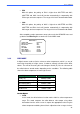
MAIN PAGE 1
LANGUAGE ENGLISH
DEFAULT CAMERA ON
BACKLIGHT OFF
FOCUS AUTO
AE MODE ENTER
WBC MODE AUTO
SETUP MENU 1 ENTER
SETUP MENU 2 ENTER