
User Manual
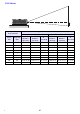
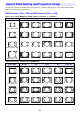
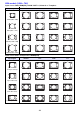
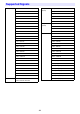
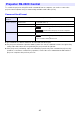
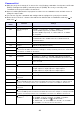
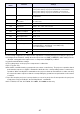
Table Of Contents
- Contents
- Safety Precautions
- Operating Precautions
- Getting Ready
- Unpacking
- Operation Flow to Projection
- General Guide
- Key and Indicator Panel
- Back Terminals
- Placing the Projector on a Desk or on the Floor
- Connecting with Another Device
- Connecting a Computer
- Connecting to a Video Device
- Outputting Audio from the Projector to Another Device
- Connecting a Microphone (XJ-UT Series, XJ-F21XN, XJ-F211WN, XJ-S400UN, XJ-S400WN)
- Connecting to a Network with a LAN Cable (Network Models Only)
- Connecting a Wireless Adapter (Network Models Only)
- LOGO Terminal (Firmware Updates, User Logo Transfers)
- Connecting a Scientific Calculator (Network Models Only)
- SERIAL Terminal (Projector Control Using Commands)
- USB Power
- Cover Included with the YW-41 Wireless Adapter
- Attaching and Removing the Cable Cover (XJ-UT Series)
- Remote Controller
- Operating the Projector
- Turning the Projector On or Off
- Selecting an Input Source (INPUT)
- Using Auto Projection Off
- Basic Image and Audio Operations During Projection
- Flipping the Projected Image Horizontally (Mirror Mode)
- Light Control
- Digital Screen Shift
- Projecting a Template
- Test Pattern Projection
- Control Panel Lock
- Configuring Remote Control ID and Projector ID Settings
- Using the Countdown Timer (TIMER)
- Using the Presentation Timer (TIMER)
- Using the Setup Menu (MENU)
- Using a Password
- Cleaning the Projector
- Troubleshooting
- Appendix
- Supplying USB Power to Another Device
- Mounting the Projector on a Wall (XJ-UT Series)
- Hanging the Projector from a Ceiling
- Using the MONITOR OUT Terminal (XJ-UT Series, XJ-S400UN, XJ-S400WN)
- Projection Distance and Screen Size
- Aspect Ratio Setting and Projection Image
- Supported Signals
- Projector RS-232C Control
- Specifications

87
POS Setup Type*
7
0: Projection with top of projector upwards, screen in front
1: Projection with top of projector downwards, screen in back
2: Projection with top of projector upwards, screen in back
3: Projection with top of projector downwards, screen in front
APO Auto Power Off 0: Off, 1: 5 minutes, 2: 10 minutes, 3: 15 minutes, 4: 20 minutes
5: 30 minutes
STS Reads the projector
error status.
0: Normal, 1: Fan error, 2: Temperature error, 7: Light error
16: Other error
MIC Microphone Input Level 0 to 3
IDS Projector ID 0: All, 1: ID1, 2: ID2, 3: ID3, 4: ID4
ALC RGB1 Level Adjust 0: Off, 1: On
AL2 RGB2 Level Adjust 0: Off, 1: On
ASO Auto Projection Off 0: Disable, 1: Enable
ASS Auto Input Search 0: Off, 1: On
TIM Timer Type 0: Presentation, 1: Countdown
TIT Countdown Timer Time 0 (0H00M00S) - 35999 (9H59M59S)
TMP*
8
Template Type 0: Lines (Large), 1: Lines (Medium), 2: Lines (Small), 3: Grid (Large),
4: Grid (Medium), 5: Grid (Small), 6: Dot Grid (Large),
7: Dot Grid (Small), 8: 2 x 2 Area
MIR Mirror Mode 0: Off, 1: On
BSN Board Number Shows the board number (page 75).
*1 This setting is applied to the input source signal that is currently being projected by the projector.
*2 Setting 0 is the “Normal” setting when the input source is RGB or HDMI(PC), while setting 2 is the
“Normal” setting when the input source is component, HDMI(DTV), or Video.
*3 Light Control Off Mode settings.
*4 The setting range on the projector setup menu is –60 to 60.
*5 XJ-UT Series only
*6 Each KEY command setting corresponds to a remote controller key. The projector operation that is
performed in response to a KEY command is identical to the corresponding remote controller key
operation. When sending KEY commands to the projector from an external device, make sure they
are sent in the same sequence that the corresponding key operations are performed on the remote
controller.
*7 Specifies how the projector is set up relative to screen for projection. Corresponds to the projector
setup menu “Projection Mode” and “Ceiling Mount” commands.
*8 XJ-UT352W, XJ-F11X, XJ-F101W, XJ-S400U, XJ-S400W models only
Command
Name
Function Settings
R
R