
User Manual
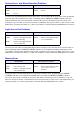
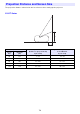
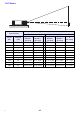
Table Of Contents
- Contents
- Safety Precautions
- Operating Precautions
- Getting Ready
- Unpacking
- Operation Flow to Projection
- General Guide
- Key and Indicator Panel
- Back Terminals
- Placing the Projector on a Desk or on the Floor
- Connecting with Another Device
- Connecting a Computer
- Connecting to a Video Device
- Outputting Audio from the Projector to Another Device
- Connecting a Microphone (XJ-UT Series, XJ-F21XN, XJ-F211WN, XJ-S400UN, XJ-S400WN)
- Connecting to a Network with a LAN Cable (Network Models Only)
- Connecting a Wireless Adapter (Network Models Only)
- LOGO Terminal (Firmware Updates, User Logo Transfers)
- Connecting a Scientific Calculator (Network Models Only)
- SERIAL Terminal (Projector Control Using Commands)
- USB Power
- Cover Included with the YW-41 Wireless Adapter
- Attaching and Removing the Cable Cover (XJ-UT Series)
- Remote Controller
- Operating the Projector
- Turning the Projector On or Off
- Selecting an Input Source (INPUT)
- Using Auto Projection Off
- Basic Image and Audio Operations During Projection
- Flipping the Projected Image Horizontally (Mirror Mode)
- Light Control
- Digital Screen Shift
- Projecting a Template
- Test Pattern Projection
- Control Panel Lock
- Configuring Remote Control ID and Projector ID Settings
- Using the Countdown Timer (TIMER)
- Using the Presentation Timer (TIMER)
- Using the Setup Menu (MENU)
- Using a Password
- Cleaning the Projector
- Troubleshooting
- Appendix
- Supplying USB Power to Another Device
- Mounting the Projector on a Wall (XJ-UT Series)
- Hanging the Projector from a Ceiling
- Using the MONITOR OUT Terminal (XJ-UT Series, XJ-S400UN, XJ-S400WN)
- Projection Distance and Screen Size
- Aspect Ratio Setting and Projection Image
- Supported Signals
- Projector RS-232C Control
- Specifications

76
Appendix
The terminals in the table below can be used to supply USB power to another device.
Important!
Turning off projector power also cuts power being supplied to external equipment. Note that
power being supplied is also cut when the projector is turned off due to restarting by its self-
check function or Auto Power Off, due to some error, or for any other reason. Depending on
the external equipment being used, cut off of the power supply may cause data that is being
edited to be lost or corrupted. Make it a habit to frequently save data on external equipment
being powered by the projector.
Projector power being turned off by Auto Power Off (page 64) also causes power to external
equipment to be cut off. Before starting power supply to external equipment, be sure to select
“Off” for the setting “Option Settings 1 3 Auto Power Off” to disable Auto Power Off.
For a list of external equipment whose operation has been confirmed while being powered by
the projector, visit the CASIO projector website (https://world.casio.com/faq/projector/).
Proper operation is not guaranteed for any external device that is not included in the list at the
CASIO projector website.
Though voltage and current power may be able to be supplied to devices other than those
listed on the CASIO website, note that doing so may result in some functions becoming
unavailable on some devices. Before using output from this port to power another device, be
sure to check the user documentation of the device and make sure you connect it correctly.
Particular care is required when connecting a chargeable battery to this projector’s USB port
power supply. Incorrect connection creates the risk of explosion, fire, and smoke.
Note that CASIO COMPUTER CO., LTD. shall be held in no way liable for any loss or
corruption of data stored on an external device connected to this projector’s USB port power
supply, or for any damage, smoke generation, or fire occurring on the connected device.
Note
To temporarily blank projection while maintaining power supply from the projector to external
equipment, press the [BLANK] key. For more information, see “Momentarily blank the image
and mute the audio (BLANK)” (page 49).
Even if the projection light has been turn off by Auto Projection Off (page 47), USB power will
continue to be supplied as long as the projector is turned on.
Supplying USB Power to Another Device
Model Name Terminal Name Power/Current
XJ-UT312WN, XJ-UT352WN,
XJ-S400UN, XJ-S400WN
USB-A/DC 5V port
USB-A port
DC 5V/1.5A
DC 5V/0.5A
XJ-F21XN, XJ-F211WN USB-A/DC 5V port DC 5V/2A
XJ-UT352W, XJ-F11X, XJ-F101W,
XJ-S400U, XJ-S400W
DC 5V port DC 5V/2A