
User Manual
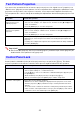
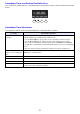
Table Of Contents
- Contents
- Safety Precautions
- Operating Precautions
- Getting Ready
- Unpacking
- Operation Flow to Projection
- General Guide
- Key and Indicator Panel
- Back Terminals
- Placing the Projector on a Desk or on the Floor
- Connecting with Another Device
- Connecting a Computer
- Connecting to a Video Device
- Outputting Audio from the Projector to Another Device
- Connecting a Microphone (XJ-UT Series, XJ-F21XN, XJ-F211WN, XJ-S400UN, XJ-S400WN)
- Connecting to a Network with a LAN Cable (Network Models Only)
- Connecting a Wireless Adapter (Network Models Only)
- LOGO Terminal (Firmware Updates, User Logo Transfers)
- Connecting a Scientific Calculator (Network Models Only)
- SERIAL Terminal (Projector Control Using Commands)
- USB Power
- Cover Included with the YW-41 Wireless Adapter
- Attaching and Removing the Cable Cover (XJ-UT Series)
- Remote Controller
- Operating the Projector
- Turning the Projector On or Off
- Selecting an Input Source (INPUT)
- Using Auto Projection Off
- Basic Image and Audio Operations During Projection
- Flipping the Projected Image Horizontally (Mirror Mode)
- Light Control
- Digital Screen Shift
- Projecting a Template
- Test Pattern Projection
- Control Panel Lock
- Configuring Remote Control ID and Projector ID Settings
- Using the Countdown Timer (TIMER)
- Using the Presentation Timer (TIMER)
- Using the Setup Menu (MENU)
- Using a Password
- Cleaning the Projector
- Troubleshooting
- Appendix
- Supplying USB Power to Another Device
- Mounting the Projector on a Wall (XJ-UT Series)
- Hanging the Projector from a Ceiling
- Using the MONITOR OUT Terminal (XJ-UT Series, XJ-S400UN, XJ-S400WN)
- Projection Distance and Screen Size
- Aspect Ratio Setting and Projection Image
- Supported Signals
- Projector RS-232C Control
- Specifications

55
You can use the operations below to have the projector project a “No Signal Screen” (page 62) or a
“Blank Screen” (page 62) as a test pattern. Use the test pattern when adjusting the parameters of the
projection screen (position, size, keystone correction, focus, aspect ratio, Digital Screen Shift, etc.)
The test pattern also comes in handy when making fine adjustments after mounting the projector on a
wall.
Important!
Auto Power Off (page 64), Auto Projection Off (page 47), and Auto Input Search (page 63) are
disabled while a test pattern is being projected.
Control panel lock disables (locks) all of the projectors keys, except for the [P] key. This limits
projector operation to the remote controller, which protects against inadvertent mis-operation.
Test Pattern Projection
To do this: Perform this operation:
Specify use of the No
Signal Screen for test
pattern projection
1. Press the [MENU] key to display the setup menu.
2. Select “Screen Settings”, “No Signal Screen”, and then use the [] and [] keys to
select “Test Pattern”.
3. Press the [MENU] key to close the setup menu.
Specify use of the Blank
Screen for test pattern
projection
1. Press the [MENU] key to display the setup menu.
2. Select “Screen Settings”, “Blank Screen”, and then use the [] and [] keys to
select “Test Pattern”.
3. Press the [MENU] key to close the setup menu.
Project the Test Pattern If settings are configured to project the test pattern when there is no signal, use the
[INPUT] key to select an input source that is not sending an input signal to the
projector.
If settings are configured for output of the test pattern when the image is blanked,
press the [BLANK] key.
Control Panel Lock
To do this: Perform this operation:
Lock the control panel 1. Press the [MENU] key to display the setup menu.
2. Select “Option Settings 2”, “Control Panel Lock”.
3. Use the [] key to select “On”. When the confirmation dialog box appears, press
the [ENTER] key.
This disables (locks) all projector keys except for the [P] key.
4. After you are finished, press the [MENU] key to exit the setup menu.
Unlock the control panel Perform either of the following operations.
While there is no menu or dialog box displayed on the projection screen, hold
down the projector’s [] key until the message “Control panel was unlocked.”
appears.
To use the remote controller to unlock the control panel, perform the procedure
under “Lock the control panel” above. In step 3, press the [] key of the remote
controller to select “Off” and then press the [MENU] key.