
User Manual
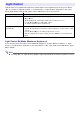
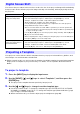
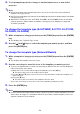
Table Of Contents
- Contents
- Safety Precautions
- Operating Precautions
- Getting Ready
- Unpacking
- Operation Flow to Projection
- General Guide
- Key and Indicator Panel
- Back Terminals
- Placing the Projector on a Desk or on the Floor
- Connecting with Another Device
- Connecting a Computer
- Connecting to a Video Device
- Outputting Audio from the Projector to Another Device
- Connecting a Microphone (XJ-UT Series, XJ-F21XN, XJ-F211WN, XJ-S400UN, XJ-S400WN)
- Connecting to a Network with a LAN Cable (Network Models Only)
- Connecting a Wireless Adapter (Network Models Only)
- LOGO Terminal (Firmware Updates, User Logo Transfers)
- Connecting a Scientific Calculator (Network Models Only)
- SERIAL Terminal (Projector Control Using Commands)
- USB Power
- Cover Included with the YW-41 Wireless Adapter
- Attaching and Removing the Cable Cover (XJ-UT Series)
- Remote Controller
- Operating the Projector
- Turning the Projector On or Off
- Selecting an Input Source (INPUT)
- Using Auto Projection Off
- Basic Image and Audio Operations During Projection
- Flipping the Projected Image Horizontally (Mirror Mode)
- Light Control
- Digital Screen Shift
- Projecting a Template
- Test Pattern Projection
- Control Panel Lock
- Configuring Remote Control ID and Projector ID Settings
- Using the Countdown Timer (TIMER)
- Using the Presentation Timer (TIMER)
- Using the Setup Menu (MENU)
- Using a Password
- Cleaning the Projector
- Troubleshooting
- Appendix
- Supplying USB Power to Another Device
- Mounting the Projector on a Wall (XJ-UT Series)
- Hanging the Projector from a Ceiling
- Using the MONITOR OUT Terminal (XJ-UT Series, XJ-S400UN, XJ-S400WN)
- Projection Distance and Screen Size
- Aspect Ratio Setting and Projection Image
- Supported Signals
- Projector RS-232C Control
- Specifications

53
You can use the procedures in this section to reduce the size of the projected image while maintaining
its aspect ratio and to shift the projection image vertically or horizontally, without physically moving
the projector.
Your projector comes with nine built-in templates that let you project horizontal lines, gridlines, and
other images onto a whiteboard or blackboard.
With a network model, you can increase the number of available templates by transferring template
images from a computer to projector memory. For details, see the separate “Network Function
Guide”.
To project a template
1.
Press the [INPUT] key to display the input menu.
2.
Use the [INPUT], [], and [] keys to select “Templates”, and then press the
[ENTER] key.
This projects the template that was previously last projected.
3.
Use the [] and [] keys to change to another template type.
Use the procedure under “To change the template type (XJ-UT352W, XJ-F11X, XJ-F101W,
XJ-S400U, XJ-S400W)” (page 54) or “To change the template type (Network Models)” (page
54) to change to another template.
With a network model, you can also adjust projection brightness (page 60).
Digital Screen Shift
To do this: Perform this operation:
Adjust the projection
image size and position
1. Press the [MENU] key to display the setup menu.
2. Select the following in sequence, and then press the [ENTER] key: “Screen
Settings”, “Digital Screen Shift”, “Reposition Digital Screen Shift”.
This displays the “Digital Screen Shift” dialog box.
3. Use the [D-ZOOM –] and [D-ZOOM +] keys to adjust the size of the projected
image within the range of 84% to 100%.
If a zoom factor that is less than 100% is specified, you can also perform the
step 4 and 5 below to reposition the projection image. If 100% is specified, jump
to step 5 of this procedure.
4. Use the [] and [] keys to move the projection image vertically, and the [] and
[] keys to move it horizontally.
5. When everything is the way you want, press the [ESC] key to close the dialog box.
Next press [MENU] to close the setup menu.
Return the projection
image size and position to
their initial defaults
1. Press the [MENU] key to display the setup menu.
2. Select the following in sequence, and then press the [ENTER] key: “Screen
Settings”, “Digital Screen Shift”, “Restore Default Digital Screen Shift”.
3. Press the [] key, select “Yes”, and then press the [ENTER] key.
Projecting a Template