
User Manual


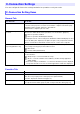
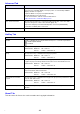

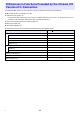


Table Of Contents
- Contents
- Establishing a Network Connection Between the Projector and a Computer
- Establishing a Direct Wireless LAN Connection Between a Computer and the Projector
- Using a Wired LAN Connection to Connect the Projector to an Existing Network
- Connecting the Projector to an Existing Wireless LAN Access Point
- Using the Projector as a NAT Router (Simultaneous Use of Wireless LAN and Wired LAN)
- Using the Remote Controller to Configure Projector Network Settings
- Using a Computer to Configure Projector Network Settings
- Preparing for C-Connection
- Network Projecting a Computer Screen Image (Using C-Connection)
- C-Connection Details
- Advanced Operations
- Controlling the Projector from an External Network Device
- Ports Used for TCP/UDP

45
You can configure C-Connection settings and tailor its operation to suit your needs.
General Tab
Favorites Tab
C-Connection Settings
C-Connection Setting Items
Use this item: To do this:
User name Input the user name when using the Moderator function (page 49). The input name
is shown on the projector’s user list screen and the computer’s Moderator page.
Allowable number of input characters: 20 maximum
Initial Default: Computer login user name
Allow control inputs from
receivers
Specify whether or not remote control of the computer from a smart device is
allowed. For details about remote operations, see “PC Remote” (page 53).
: Remote operation enabled.
: Remote operation disabled (initial default).
Changing the remote control setting from disabled to enabled will display an enter
passcode dialog box. Input any four digits. The passcode you input here must be
input on a smart device that will be used for remote control of the computer.
Mute PC audio when
projecting (Windows only)
Specify whether or not audio output from the speakers of the computer whose
screen image is being projected should be muted.
: Mute audio.
: Unmute audio (initial default).
Always on Top Specifies whether or not the C-Connection window should always be kept on top
of other windows.
: Always keep C-Connection window on top.*
: Allow C-Connection window to be hidden by another running application
(initial default).
* Even if this setting is enabled, the C-Connection window may not be displayed
on top while the full-screen view of another application’s window is displayed.
Use this item: To do this:
Default List Specify what C-Connection should do after it starts up.
Auto Discovery: Display a list of found projectors (initial default).
Favorites: Display the Favorites list (page 33).
Favorites List Export Favorites data to a file or import Favorites data from a file. For details, see
“To export Favorites data” (page 34) and “To import Favorites data” (page 34).