
User Manual

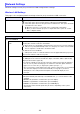

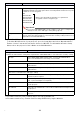

Table Of Contents
- Contents
- Establishing a Network Connection Between the Projector and a Computer
- Establishing a Direct Wireless LAN Connection Between a Computer and the Projector
- Using a Wired LAN Connection to Connect the Projector to an Existing Network
- Connecting the Projector to an Existing Wireless LAN Access Point
- Using the Projector as a NAT Router (Simultaneous Use of Wireless LAN and Wired LAN)
- Using the Remote Controller to Configure Projector Network Settings
- Using a Computer to Configure Projector Network Settings
- Preparing for C-Connection
- Network Projecting a Computer Screen Image (Using C-Connection)
- C-Connection Details
- Advanced Operations
- Controlling the Projector from an External Network Device
- Ports Used for TCP/UDP

24
Network Settings include projector wireless LAN settings and IP settings.
Wireless LAN Settings
This page is for configuring detailed settings related to projector wireless LAN connection.
Network Settings
Use this item: To do this:
Enable Wireless LAN Switch the projector’s wireless LAN function between enabled and disabled.
: Select this option when using the wireless LAN function (initial default).
: Select this option when not using the wireless LAN function. This option should be
selected in the cases below.
When the projector is connected only to a network by a wired LAN
When you don’t want the projector to output radio waves (same as a smart
device’s Airplane Mode)
Use this item: To do this:
Access Point Mode
Enable Access Point
Mode
Specify whether or not the projector will be used as a wireless LAN access point.
Selecting this check box exits the Client Mode.
: Enters the Access Point Mode, which allows the projector to be used as a wireless
LAN access point (initial default). In this case, the projector can be connected with
from a computer or smart device via wireless LAN.
: Exit the Access Point Mode.
The settings from “SSID” to “SSID Broadcast” below are applied while the projector is
being used as a wireless LAN access point.
SSID Specify an SSID (Initial Default: casiolpj000).
The “000” part of the SSID are the final three digits of the MAC Address (Wired LAN)
(unique product number, page 30).
If you want to manually specify an SSID, input any character string into this input box.
You can use any of the following types of characters: numerals, alpha characters
(upper case or lower case), or single-byte symbols (except \, ”, ’).
Up to 32 characters can be input for the SSID. However, if the SSID is so long that all
of it cannot be displayed on the network standby screen (page 7), shorten it.
Attempting to save settings while this input box is blank will display an error
message.
Mode Select a wireless LAN standard.
B/G/N (initial default): Automatically select IEEE802.11b, g, or n as the wireless LAN
standard.
B: IEEE802.11b (maximum communication speed 11 Mbps*).
G: IEEE802.11g (maximum communication speed 54 Mbps*).
N: IEEE802.11n (maximum communication speed 300 Mbps*).
* Specification values. Actual speeds may be slower, depending on the system
environment.
C