
User Manual
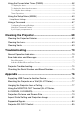
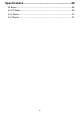
Table Of Contents
- Contents
- Safety Precautions
- Operating Precautions
- Getting Ready
- Unpacking
- Operation Flow to Projection
- General Guide
- Key and Indicator Panel
- Back Terminals
- Placing the Projector on a Desk or on the Floor
- Connecting with Another Device
- Connecting a Computer
- Connecting to a Video Device
- Outputting Audio from the Projector to Another Device
- Connecting a Microphone (XJ-UT Series, XJ-F21XN, XJ-F211WN, XJ-S400UN, XJ-S400WN)
- Connecting to a Network with a LAN Cable (Network Models Only)
- Connecting a Wireless Adapter (Network Models Only)
- LOGO Terminal (Firmware Updates, User Logo Transfers)
- Connecting a Scientific Calculator (Network Models Only)
- SERIAL Terminal (Projector Control Using Commands)
- USB Power
- Cover Included with the YW-41 Wireless Adapter
- Attaching and Removing the Cable Cover (XJ-UT Series)
- Remote Controller
- Operating the Projector
- Turning the Projector On or Off
- Selecting an Input Source (INPUT)
- Using Auto Projection Off
- Basic Image and Audio Operations During Projection
- Flipping the Projected Image Horizontally (Mirror Mode)
- Light Control
- Digital Screen Shift
- Projecting a Template
- Test Pattern Projection
- Control Panel Lock
- Configuring Remote Control ID and Projector ID Settings
- Using the Countdown Timer (TIMER)
- Using the Presentation Timer (TIMER)
- Using the Setup Menu (MENU)
- Using a Password
- Cleaning the Projector
- Troubleshooting
- Appendix
- Supplying USB Power to Another Device
- Mounting the Projector on a Wall (XJ-UT Series)
- Hanging the Projector from a Ceiling
- Using the MONITOR OUT Terminal (XJ-UT Series, XJ-S400UN, XJ-S400WN)
- Projection Distance and Screen Size
- Aspect Ratio Setting and Projection Image
- Supported Signals
- Projector RS-232C Control
- Specifications
10
Objects Blocking Projection
Make sure there are no objects that
can block the light in front of the lens
while projecting.
Such conditions create the risk of fire.
Aquarium, Other Water Tank
Make sure there is no aquarium or any
other type of water tank that can
produce a lens effect in front of the
lens while projecting.
Such conditions create the risk of fire.
Lens
Do not touch the lens with your hand.
Doing so creates the risk of burn injury
and accident.
Storage and Operation Locations
Do not store or use the product in any
of the locations described below.
Doing so creates the risk of fire and
electric shock.
•Areas subjected to large amounts of moisture
and dust
• Food preparation areas, near a humidifier, or
in areas where the product is exposed to oil
smoke or water vapor
• Areas where there is strong vibration
• Other areas where there are high or low
temperatures (Operating temperature range:
5°C to 35°C)
Do not place the product on an
unsteady platform, on a high shelf, or
in any other unstable location.
Dropping and tipping over creates the
risk of personal injury.
Location
Do not place heavy objects on the
product or climb up on it.
Doing so creates the risk of fire and
electric shock.
Do not leave the product in a lavatory,
a bathroom, or anywhere else there is
the chance that it will become wet.
Moisture creates the risk of fire and
electric shock.
Lock the wheels. (When using the
product on a handcart, etc.)
Dropping and tipping over create the
risk of personal injury.
In the case of a lightning storm, do
not touch the device plugged into
the power outlet
Lightning creates the risk of electric
shock.
Remote controller
Never try to take the remote controller
apart or modify it in any way. Doing so
creates the risk of electric shock, burn
injury, and other personal injury. Be sure
to leave all internal inspection,
adjustment, and repair up to your
original dealer or authorized CASIO
service center.
Never allow the remote controller to
become wet. Water creates the risk of
fire and electric shock.
-
-
-
-
-
-
-
+
’
!
+