ENGLISH Preparations Shooting Playback/Erasing Menus and Settings Wireless Connection Basic Camera User Guide Please Read This First This guide explains how to prepare the camera and use its basic features. CDI-E206-010 XX05XXX © 2005 CANON INC.
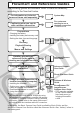
Flowchart and Reference Guides The following guides are available. Refer to them as necessary according to the flowchart below.
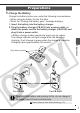
Preparations 1. Charge the Battery. Charge the battery before use under the following circumstances. • When using the battery for the first time. • When the “Change the battery pack” message displays. 1. Insert the battery into the battery charger. 2. Plug the battery charger (CB-2LV) into a power outlet, or attach the power cord to the battery charger (CB-2LVE) and plug it into a power outlet. • Battery charger model names and types vary by region.
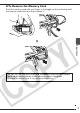
2. Install the Battery. 1. Slide the memory card slot/battery cover and open it ( , ). 2. Push the battery lock in the direction of the arrow ( ) and insert the battery until it locks. To remove the battery, push the battery lock in the direction of the arrow ( ) and hold it while pulling the battery out. Battery Lock 3. Insert the Memory Card. 1. Insert the memory card until it clicks into place. 2. Close the memory card slot/battery cover ( , ).
To Remove the Memory Card Push the memory card with your finger or the toggle on the wrist strap until the memory card clicks and then release it. Preparations You can use SD* memory cards and MultiMediaCards with this camera. These cards are collectively called memory cards in this guide. *SD stands for Secure Digital, a copyright protection system.
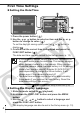
First Time Settings Setting the Date/Time 1. Press the power button ( ). 2. Use the or button to select an item and the or button to change its value ( ). To set the daylight saving option, use the or button to display . 3. Confirm that the correct time is displayed and press the FUNC./SET button ( ). The date and time can also be set in the Set up menu (p. 13). • A rechargeable lithium battery is built into the camera to save such settings as the date/time.
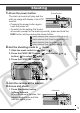
Shooting 1. Press the power button. Power Button The start-up sound will play and the start-up image will display in the LCD monitor. • Pressing the power button again turns the power off. • To switch to the setting that mutes all sounds (except for the warning sound), press and hold the DISP. button while pressing the power button. Î See the Advanced Guide: Using the LCD Monitor (p. 19). Î See the Advanced Guide: Power Saving Function (p. 27). Î See the Advanced Guide: Set up Menu (p. 34).
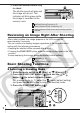
2. Press the shutter button fully to shoot. The shutter sound will play and the image will record. The indicator will blink green while the image is recorded to the memory card. Î See Basic Shooting Functions (p. 6). Î See the Advanced Guide: Indicators (p. 26). See the Advanced Guide for the various shooting methods Î available. Reviewing an Image Right After Shooting After a shot is taken, the image appears in the LCD monitor for approximately 2 seconds.
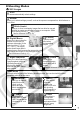
Shooting Modes Still Images Auto The camera automatically selects settings. Manual Allows you to select settings yourself, such as the exposure compensation, white balance or photo effect. Stitch Assist Allows you to shoot overlapping images that can later be merged (stitched) to create one panoramic image on a computer. Select [Stitch Assist] from the [ (Rec.)] menu. Î See the Advanced Guide (p. 49).
Fireworks Beach Captures fireworks in the sky sharply and at optimal exposure. Shoots without making people appear dark near water or sand where reflected sunlight is strong. Movie Movie Shoots a movie when you press the shutter button. You can select from four modes: [Standard], [Fast Frame Rate] suitable for sports or fast motion, [Compact] convenient for email attachments and [My Colors] which allows you to change color effects. Î See the Advanced Guide (p. 47). • The shutter speed is slow in mode.
Using the Flash 1. Press the button to cycle through flash settings. Flash settings cannot be used in some shooting modes. Auto Auto with red-eye reduction Flash on with red-eye reduction Shooting Flash on Flash off Slow synchro Red-eye reduction This feature reduces the effect of light reflecting back from the eyes and making them appear red. Slow synchro The flash timing is adjusted to a slow shutter speed, allowing you to shoot night scenes.
Shooting Close-Ups/Infinity Shots 1. Press the / button to switch modes. To cancel the macro/infinity mode: press the remove or from the display. / button to These settings cannot be set in some shooting modes. Macro Use this mode to shoot close-ups of flowers or small items. Image Area at Minimum Shooting Distance from End of Lens to Subject • Maximum wide angle setting: 37 × 27 mm (1.5 × 1.1 in.) Minimum shooting distance: 3 cm (1.2 in.) • Maximum telephoto setting: 108 × 81 mm (4.3 × 3.2 in.
Playback 1. Slide the mode switch to (playback). The last recorded image will appear in the LCD monitor. 2. Use the or button to display the image you wish to view. Use the button to move to the previous image and the button to move the next image. Holding the button down advances the images more rapidly, but shows them less clearly. Î See the Advanced Guide for the various playback methods available Erasing 1.
Menus and Settings Settings for the shooting or playback modes or such camera settings as the date/time, sounds and wireless connection are set using the FUNC., Rec., Play, Wireless, Set up or My Camera menu. FUNC. Menu This menu sets many of the common shooting functions. Slide the mode switch to or . Press the FUNC./SET button. Use the or button to select a menu item. • Some items may not be selectable in some shooting modes. Use the or button to select an option for the menu item.
Rec., Play, Wireless, Set up and My Camera Menus Convenient settings for shooting or playback can be set with these menus. (Wireless) Menu (Rec.) Menu (Set up) Menu (Play) Menu (My Camera) Menu You can switch between menus or with the button when this part is selected. • This example shows the Rec. menu. • In playback mode, the Play menu displays. Menus and Settings Press the MENU button. Use the or button to switch between menus. • You can also use the zoom lever to switch between menus.
Wireless Connection Printing If you attach the wireless print adapter provided to a Canon PictBridge compliant printer, you can print your images easily via a wireless connection between the camera and the printer. Canon PictBridge Compliant Printers SELPHY CP Series Compact Photo Printers Camera PIXMA Series/SELPHY DS Series Bubble Jet Printers 1. Attach a compact power adapter to the supplied wireless print adapter to connect it to a Canon PictBridge compliant printer. • Turn the printer on.
3. After confirming that the target device is [1.WA-1], use the ( or ). button to select [Connect] ( ), and press The wireless connection will start. 4. Confirm that is displayed in the upper left of the LCD monitor ( ), use the or button to select an image to print ( ) and press the button ( ). Î See the Advanced Guide: Setting the DPOF Print Settings (p. 88).
Downloading Images to a Computer The following methods can be used to download images recorded by the camera to a computer. z Installing the supplied software and transfering images to the computer • Connecting wirelessly between the camera and computer* • Connecting the supplied interface cable to the camera and to the computer * Connecting wirelessly between the camera and a computer is only possible with the Windows XP SP2 operating system.
Safety Precautions Be sure to read, understand and follow the safety precautions below when using the camera, in order to prevent injury, burns or electrical shock to yourself and others. Be sure to also read the safety precautions listed in the Advanced Camera User Guide. Warnings • Do not trigger the flash in close proximity to human or animal eyes. • Store this equipment out of the reach of children and infants. • Avoid dropping or subjecting the camera to severe impacts.