ENGLISH The Components Guide Preparation Shooting Playback/Erasing Menus and Settings Printing Downloading Images to a Computer Basic Camera User Guide Please Read This First This guide explains how to prepare the camera and use its basic features. CDI-E291-010 XXXXXXX © 2006 CANON INC.
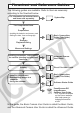
Flowchart and Reference Guides The following guides are available. Refer to them as necessary according to the flowchart below. For information on included items and items sold separately System Map The Components Guide Preparations • Installing the batteries and memory card • Setting the date, time and language Shooting Playback/Erasing Basic Camera User Guide (This Guide) • Read this first.
The Components Guide Front View The Components Guide aMicrophone (Advanced Guide p. 79) bAF-assist Beam (Advanced Guide p. 20) cRed-Eye Reduction Lamp (p. 12) dSelf-Timer Lamp (p. 16) eSpeaker fViewfinder Window (Advanced Guide p. 16) gFlash (p. 12) hTerminal Cover iA/V OUT (Audio/Video output) Terminal (Advanced Guide p. 88) jDIGITAL Terminal (p. 27) kDC IN Terminal (Power input) (Advanced Guide p. 109) lRing Release Button (Advanced Guide p. 112) mRing (Advanced Guide p.
Back View Attaching the Wrist Strap a LCD Monitor (Advanced Guide p. 12) b Viewfinder (Advanced Guide p. 16) c Wrist Strap Mount d Memory Card Slot / Battery Cover Lock (p. 5) e Memory Card Slot / Battery Cover (p. 5) f Tripod Socket The LCD monitor is covered with a thin plastic film for protection against scratches during shipment. Remove it before using the camera.
Controls The Components Guide aIndicators (p. 4) bPower Lamp cPower Button (p. 8) dZoom Lever (p. 12, Advanced Guide p. 70) Shooting: (Wide Angle)/ (Telephoto) Playback: (Index)/ (Magnify) eShutter Button (p. 8) fShooting Mode Dial (pp. 8, 9) gMode Switch (pp. 8, 18) h (Print/Share) Button (pp. 22, 30) iFUNC./SET (Function/Set) Button (Advanced Guide p. 18) jMENU Button (Advanced Guide p. 19) kDISP. (Display) Button (Advanced Guide p. 12) l (Exposure)/ (Single Image Erase) Button (p.
Indicators The camera indicators will light or blink under the following conditions. Never do the following while the indicator blinks green. These actions may corrupt image data.
Preparations 1. Installing the batteries. 1. Slide the memory card slot/battery cover lock in the direction of the arrow and open the cover. 2. Insert the 2 supplied AA-size alkaline batteries, or separately sold AA-size NiMH batteries. Positive end (+) Negative end (–) 2. Inserting the Memory Card. Preparations Î See the Advanced Guide: Battery Handling (p. 103). 1. Insert the memory card until it clicks into place. Front 2. Close the memory card slot/battery cover.
To Remove the Memory Card Push the memory card with your finger until the memory card clicks and then release it. You can use SD memory cards, SDHC memory cards and MultiMediaCards with this camera. These cards are collectively called memory cards in this guide.
First Time Settings Setting the Date/Time a b Preparations c 1. Press the power button (a). 2. Use the or button to select an item and the or button to change its value (b). 3. Confirm that the correct time is displayed and press the FUNC./SET button (c). The date and time can also be set in the Set up menu (p. 21). The date/time setting screen will appear when the camera power is turned on for the first time, or when the capacity of the lithium date/time battery is depleted.
Shooting 1. Press the power button. The start-up sound will play and the startup image will display in the LCD monitor. • Pressing the power button again turns the power off. • Pressing the power button while pressing and holding the DISP. button will turn on the mute setting which will mute all sounds except for warning sounds. Power button DISP. button Î See the Advanced Guide: Using the LCD Monitor (p. 12). Î See the Advanced Guide: Power Saving Function (p. 17).
2. Press the shutter button fully to shoot. The shutter sound will play and the image will record. The indicator will blink green while the image is recorded to the memory card. Î See Indicators (p. 4). Î See the Advanced Guide: Selecting an AF Frame (p. 44). Î See the Advanced Guide: Setting the Image Stabilizer Function (p. 28). Î See the Advanced Guide for the various shooting methods available.
Shooting Modes Auto The camera automatically selects settings. When a shooting mode appropriate for the shooting conditions is selected, the camera automatically adjusts settings for optimal shooting. Portrait Blurs the background and makes a person stand out. Landscape Optimized for shooting landscape scenes which contain both near and far subjects. Night Scene Allows you to capture human subjects against the backdrop of an evening sky or night scene.
Color Accent Color Swap Use this option to have only the color specified in the LCD monitor remain and to transform all others to black and white. Î See the Advanced Guide (p. 57). Use this option to transform a color specified in the LCD monitor into another. Î See the Advanced Guide (p. 59). Stitch Assist Image zone Allows you to shoot overlapping images that can later be merged (stitched) to create one panoramic image on a computer. Î See the Advanced Guide (p. 39).
Using the Zoom 1. Press the zoom lever toward or . The zoom can be adjusted from 35 mm – 210 mm (focal length) in 35mm film equivalent terms. The zoom bar appears when you press the zoom lever. Telephoto: Zooms in on the subject. Wide Angle: Zooms out from the subject. Using the Flash 1. Press the button to cycle through flash settings. Each time you press the button, the flash settings will change.
Auto with red-eye reduction The flash fires automatically and fires the redeye reduction lamp each time. Auto The flash fires automatically. Flash on with redeye reduction The red-eye reduction lamp and flash always fire. Flash on The flash always fires. Flash off The flash will not fire. Red-eye reduction: This feature reduces the effect of light reflecting back from the eyes and making them appear red. Î See Setting the Red-Eye Reduction Function (p. 14).
Setting the Red-Eye Reduction Function You can set whether the camera automatically performs red-eye reduction when the flash fires. 1. (Rec.) Menu [Red-Eye] [On]*/[Off]. Î See Menus and Settings (p. 20). * Default setting. Setting the Slow Synchro Function The flash timing is adjusted to slow shutter speeds. This reduces the chance that only the background will appear dark when a person is shot against a twilight background or night scene, or when an interior shot is taken. 1. (Rec.
Shooting Close-ups (Macro) 1. Press the button. Zoom bar Yellow bar Macro mode icon To cancel the macro mode, press the or display. button to turn off the Shooting When using the zoom in macro mode, a yellow bar appears below the zoom bar to indicate the range in which you cannot use macro mode to shoot the subject. If the zoom bar enters the yellow bar range, the macro mode icon will turn gray. You can still shoot the image, however, the shot will be taken as if in standard shooting mode.
Using the Self-Timer 1. FUNC. Menu * (Drive Mode) / / . Î See Menus and Settings (p. 20). * Default setting. • When the shutter button is pressed fully, the self-timer lamp will blink. When using red-eye reduction, the self-timer lamp will blink and then stay lit for the last 2 seconds. To cancel the self-timer, follow step 1 and select . 10 sec. Self-Timer: Shoots 10 sec. after you press the shutter button. • 2 sec. before the shutter releases, the self-timer sound and lamp will speed up*1. 2 sec.
Changing the Delay Time and Number of Shots ( ) 1. FUNC. Menu (Drive Mode) (Custom Timer). Î See Menus and Settings (p. 20). 2. Press the MENU button. 3. Select [Delay] or [Shots] using the change the settings using the or or button and button. Shooting If the [Shots] option is set to 2 or more shots, the following occurs. - The exposure and white balance are locked at the settings selected for the first shot.
Playback 1. Set the mode switch to (playback)(a). The last image that was played back appears (Resume Playback). If additional images were shot after viewing images in playback mode, the last image that was shot will appear instead. If the memory card has been switched, or the images on the memory card have been edited with a computer, the newest image on the memory card appears. 2. Use the or to view (b).
Erasing 1. In the playback mode, use the or button to select an image to erase (a) and press the button (b). b a c 2. Confirm that [Erase] is selected and press the FUNC./SET button (c). To exit instead of erasing, select [Cancel]. Please note that erased images cannot be recovered. Exercise adequate caution before erasing an image. Î See the Advanced Guide: Erasing All Images (p. 82).
Menus and Settings Settings for the shooting, playback or print modes or such camera settings as the date/time and sounds are set using the FUNC., Rec., Play, Print, Set up or My Camera menu. FUNC. Menu This menu sets many of the common shooting functions. a b e c d •This example shows the FUNC. menu in mode. a Set the mode switch to (shooting). b Press the FUNC./SET button. c Use the or button to select a menu item. • Some items may not be selectable in some shooting modes.
Rec., Play, Print, Set up and My Camera Menus Convenient settings for shooting, playback or printing can be set with these menus. (Set up) Menu (Rec.) Menu (My Camera) Menu e a b You can switch between menus with the or button when this part is selected. c d •This example shows the Rec. menu when in mode. • In playback mode, the Play, Print, Set up and My Camera menus display. Menus and Settings aPress the MENU button. bUse the or button to switch between menus.
Printing Connect the camera to a direct print compatible printer*1 with a cable and simply press the button on the camera. 1. Connect the camera to a direct print compatible printer and turn on the printer’s power. Canon Brand Printers Camera Interface Cable SELPHY CP Series Compact Photo Printers*2 PIXMA Series/ SELPHY DS Series Bubble Jet Printers *1 Since this camera uses a standard protocol (PictBridge), you can use it with other PictBridge-compliant printers in addition to Canon-brand printers.
2. Turn on the power in playback mode and confirm that , or is displayed in the upper left of the LCD monitor (a). • The button will light blue. • The displayed icon will vary according to the printer model. • will display for movies. 3. Select an image to print using the and press the The or button (b) button (c). button will blink blue and printing will start. a c b Î See the Advanced Guide: Setting the DPOF Print Settings (p. 83). Î See the Direct Print User Guide.
Downloading Images to a Computer The following methods can be used to download images recorded by the camera to a computer. Some methods, depending on the OS used, may not be available. Please read System Requirements (p. 25) in advance.
System Requirements Please install the software on a computer meeting the following minimum requirements. Windows OS Windows 98 Second Edition (SE) Windows Me Windows 2000 Service Pack 4 Windows XP (including Service Pack 1 and Service Pack 2) Computer Model The above OS should be pre-installed on computers with built-in USB ports.
Preparing to Download Images Ensure that you install the software first before connecting the camera to the computer. Items to Prepare • Camera and computer • Canon Digital Camera Solution Disk supplied with the camera • Interface cable supplied with the camera 1. Install the software. 1. Place the Canon Digital Camera Solution Disk in the computer’s CD-ROM drive. Double-click the [Canon Digital Camera Installer] icon in the CD-ROM window. When the installer panel appears, click [Install]. 2.
2. Connecting the camera to a computer. 1. Use the supplied interface cable to connect the computer’s USB port to the camera’s DIGITAL terminal. Slip your fingernail under the right edge of the camera’s terminal cover, lift it open and plug the interface cable in all the way. USB Port DIGITAL Terminal Interface Cable Interface Cable Always grasp the sides of the connector when disconnecting the interface cable from the camera’s DIGITAL terminal. Downloading Images to a Computer 2.
Downloading Images to a Computer A window allowing you to set the preferences will appear when a connection is established between the camera and computer. 1. Select [Canon CameraWindow] and click [OK] (first time only). If the window to the right does not appear, click the [Start] menu and select [All Programs] or [Programs], followed by [Canon Utilities], [CameraWindow], [PowerShot - IXY - IXUS - DV 6] and [CameraWindow]. 2. Download the images. • Download the images using the camera or the computer.
Downloading Images to a Computer The following window will appear when you establish a connection between the camera and computer. If it fails to appear, click the [Canon CameraWindow] icon on the Dock (the bar which appears at the bottom of the desktop). 1. Download the images. • Download the images using the camera or the computer. • By default, the downloaded images are saved into the [Pictures] folder. Downloading Images Using the Camera (p. 30).
Downloading Images Using the Camera (Direct Transfer) Use this method to download images using camera operations. Install the supplied software and adjust the computer settings before using this method for the first time (p. 26). All Images Transfers and saves all images to the computer. New Images Transfers and saves to the computer only the images that have not been previously transferred. Transfers and saves to the computer only the DPOF Trans.
Select & Transfer/Wallpaper 2. Select or , and press the FUNC./SET button). button (or the 3. Select images to download and press the button (or the FUNC./SET button). • The images will download. The button will blink blue while downloading is in progress. • Images can also be selected during index playback (Advanced Guide p. 71). • Press the MENU button to return to the Direct Transfer menu. The option selected with the button is retained even when the camera’s power is turned off.
MEMO 32
Safety Precautions Be sure to read, understand and follow the safety precautions below when using the camera, in order to prevent injury, burns or electrical shock to yourself and others. Be sure to also read the safety precautions listed in the Advanced Camera User Guide. Warnings • Do not trigger the flash in close proximity to human or animal eyes. • Store this equipment out of the reach of children and infants. • Avoid dropping or subjecting the camera to severe impacts.