
Guide for Free Layout (Mac)
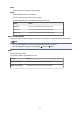
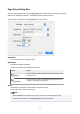
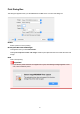
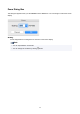
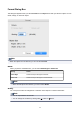


• Tool buttons that can be added
Fit to Width
You can change the zoom scaling of part of the preview in the selected window so as to fit the
width of the printing area of one page.
You can also set this with Fit to Width in the View menu.
Fit Screen
You can change the zoom scaling of part of the preview in the selected window so as to display
the entire printing area of one page.
You can also set this with Fit Screen in the View menu.
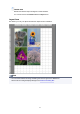
Delete
Deletes the selected object.
You can also execute this with Delete from the Edit menu.
Align Top
Aligns the selected object at the top position.
You can also set this with Align Top in the Object menu.
Center Vertically
Aligns the selected object vertically in the center.
You can also set this with Center Vertically in the Object menu.
Align Bottom
Aligns the selected object at the bottom position.
You can also set this with Align Bottom in the Object menu.
Align Left
Aligns the selected object at the left position.
You can also set this with Align Left in the Object menu.
Center Horizontally
Aligns the selected object horizontally in the center.
You can also set this with Center Horizontally in the Object menu.
Align Right
Aligns the selected object at the right position.
You can also set this with Align Right in the Object menu.
Rotate Right
Rotates the selected object 90 degrees clockwise.
You can also set this with Rotate Right in the Object menu.
22