
Guide for Device Management Console (Windows)
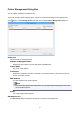
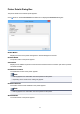
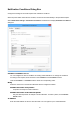
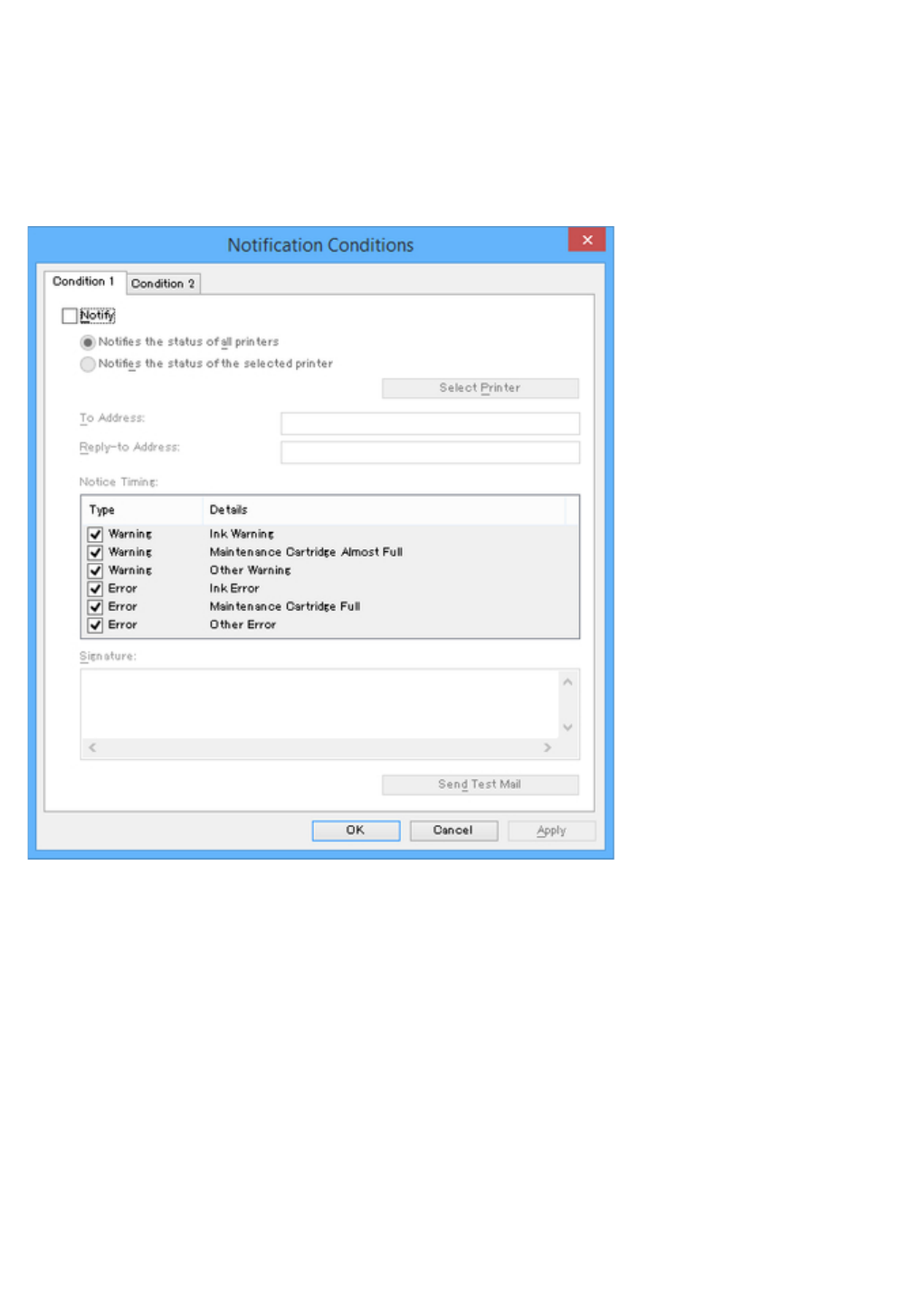
Notification Conditions Dialog Box
Configure the settings of the email recipient and notification conditions.
When the printer status meets the set condition, an email is sent automatically to the specified recipient.
Select Notification Settings > Notification Conditions on File menu to display Notification Conditions
dialog box.
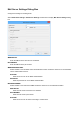
Condition 1/Condition 2 sheet
You can configure two sets of conditions for sending email notifications. To change the conditions
according to the recipient, enter the items on the Condition 1 and Condition 2 sheets.
Click the Condition 1 or Condition 2 tab to select the corresponding sheet.
Notify
Select this check box to send email notification with the configured condition.
Notifies the status of all printers
All printers are subject to email notification.
Notifies the status of the selected printer
Only the selected printers are subject to email notification. To select a printer, click the Select
Printer button.
To Address
Enter the email address to which to send the email. You can register up to 5 email addresses.
69