
imageCLASS MF7280 Reference Guide





Clearing Paper Jams
7-3
7
Troubleshooting
Clearing Paper Jams
If a paper jam occurs, the following screens appear on the touch panel display.
Screens Indicating the Locations of Paper Jams
The screen indicating the location of the paper jam and instructions on how to clear
the paper jam appears on the touch panel display. This screen repeatedly appears
on the touch panel display until the paper jam is entirely cleared.
■ Example of a Screen Indicating the Location of the Paper Jam
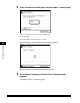
When a paper jam occurs, a black circle that appears on the screen indicates the location
of the paper jam. Follow the instructions on how to clear the paper jam appear along the
topside of the screen.
When you press [Recover Later], you can continue operations, such as setting modes and
scanning originals, without removing the jammed paper immediately.
IMPORTANT
When a paper jam occurs in the Feeder, you cannot continue operating the machine.
Follow the instructions on the touch panel display to remove the jammed paper. (See
"Feeder," on p. 7-13.)
WARNING
There are some areas inside the machine which are subject to high-voltages.
When removing jammed paper or when inspecting the inside of the machine, do
not allow necklaces, bracelets, or other metal objects to touch the inside of the
machine, as this may result in burns or electrical shock.