
imageCLASS MF7280 Reference Guide



Paper Drawers
6-3
6
Routine Maintenance
IMPORTANT
•
A screen prompting you to load paper also appears if the selected paper drawer is not
fully inserted into the machine. Make sure that the paper drawer is properly in place.
•
Do not load nonstandard paper sizes into the paper drawers.
•
Do not load the following types of paper into the paper drawers, as this may cause a
paper jams:
- Severely curled or wrinkled paper
- Lightweight straw paper: less than 18 lb bond (64 g/m
2
) (approximately)
- Transparencies
- Envelopes
- Labels
- Paper on which color images have been copied (Do not copy on the reverse side
either.)
- Paper which has been printed on using a thermal transfer printer (Do not print on the
reverse side either.)
- Reverse side of the printed paper
•
Fan the stack of paper well before loading it, and align the edges of the paper stack on a
flat surface.
•
Never place paper or any other items in the empty part of the drawer next to the paper
stack. Doing so may cause paper jams.
NOTE
•
If a message prompting you to load paper appears during printing, the remaining prints
are automatically made after you load the correct paper.
•
To cancel printing, press [Cancel].
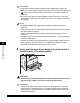
1
Grip the handle of the paper drawer and pull out the paper
drawer until it stops.