
imageCLASS MF5500 Series Basic Guide




Loading Paper
2-12
Paper Handling
2
2
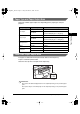
Insert the paper straightly in the multi-purpose feeder with the
print side up.
NOTE
When you load paper with a logo on, position the paper with the print side up (logo side)
and insert it so that the top of the paper feeds first in the multi-purpose feeder.
3
Specify the paper size.
❑
Press [Menu]
➞
[ ] or [ ] to select <COMMON SETTINGS>
➞
press [Set].
❑
Press [ ] or [ ] to select <PAPER SETTINGS>
➞
press [Set]
➞
[] or [ ] to select
<PAPER SIZE>
➞
press [Set].
❑
Press [ ] or [ ] to select the appropriate paper size (LTR, LGL, EXECUTIV, A4, B5,
ENVELOPE, or FREE SIZE)
➞
press [Set].
NOTE
Select [ENVELOPE] for envelopes. For details on loading an envelope in the
multi-purpose feeder, see "Loading an Envelope in the Multi-Purpose Feeder," on p.
2-13.
When <FREE SIZE> is selected, you can specify vertical and horizontal sizes of the
paper in the following ranges:
- <VERTICAL SIZE>: 127 mm to 356 mm (5" to 14")
- <HORIZONTAL SIZE>: 76 mm to 216 mm (3" to 8
1
/
2
")
LD_Basic_US.book Page 12 Friday, December 5, 2003 5:52 PM