
imageCLASS MF4270 Basic Operation Guide


Troubleshooting
11-22
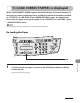
Changing the Paper Size Setting
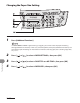
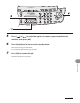
1 Press [Additional Functions].
If <LOAD CORRECT PAPER> appears during a copy job, you cannot access the paper size setting
through [Additional Functions]. In this case, cancel the job first, then press [Additional Functions] and
change the paper size setting. For instructions on how to cancel copy jobs, see “Canceling Copy Jobs,”
on p.
3-17.
2 Press [ ] or [ ] to select <PAPER SETTINGS>, then press [OK].
3 Press [ ] or [ ] to select <CASSETTE> or <MP TRAY>, then press [OK].
4 Press [ ] or [ ] to select <PAPER SIZE>, then press [OK].