
imageCLASS D880/D860/D861 Basic Guide



4-10
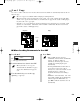
■ When Placing a Document on the Platen Glass
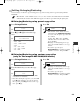
1
Press 2 on 1.
Ex:
• 2ON1 appears in the LCD.
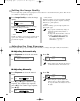
2
Use the numeric keys to set the copy
quantity. (→ p. 4-3)
3
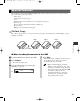
Place the last page of a document on the
platen glass.
• If a document is set from the first page, the
printing will be performed in reverse order.
• When the document has an odd number of
pages, first place a blank sheet of white
paper on the platen glass and then scan the
document.
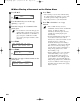
4
Press Start.
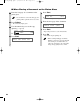
5
Press Start.
Ex:
• The machine begins scanning.
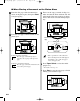
6
Place the next page of the document on the
platen glass.
7
Press Start.
• After scanning every two sheets without setting
the collate function, the quantity of copies of the
document specified in Step 2 will print out.
• Repeat Steps 6 and 7 to scan all documents.
8
Press Set to finish the 2 on 1 copy
function.
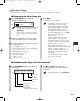
• If the available memory decreases,
SCANNING, PLEASE WAIT and MAKING
SPACE IN MEM are displayed
alternatively. If memory space becomes
available, the scanning begins again
automatically.
• For imageCLASS D880, check if there are
received faxes or faxes to be sent in
memory. If so, wait for the machine to send
and print any faxes, or delete any
documents in memory before making a
copy. If MEMORY FULL appears although
there is no fax in memory, change copy
exposure mode to AUTO EXPOSURE, or
change image quality mode to TEXT
before making a copy.
• If image quality mode is set to other than
TEXT when making a 2 on 1 copy of a
document which has many graphics or
photos, MEMORY FULL will appear and
copying will be canceled. If this happens,
change image quality mode to TEXT. Even
if you do so, MEMORY FULL may appear
depending on the document, and copying
may be canceled.
NOTE
NEXT PAGE :[START]
FINISH SCAN :[SET]
SCANNING
COPY NO. 0015
SET FROM END OF DOC.
PRESS THE START KEY
NOTE
2ON1 LTR
TEXT
01
04 RG_Chap4.qxd 6/17/04 2:21 PM Page 4-10