EdgeAccess Universal Chassis System Model 1502 Domain Management Module User Manual
EdgeAccess Universal Chassis System NOTICE Canoga Perkins has prepared this users manual for use by customers and Canoga Perkins personnel as a guide for the proper installation, operation and/or maintenance of Canoga Perkins equipment. The drawings, specifications and information contained in this document are the property of Canoga Perkins and any unauthorized use or disclosure of such drawings, specifications and information is prohibited.
EdgeAccess Universal Chassis System Table of Contents Chapter 1 Overview and Management Architecture ............................................1-1 Features of the Domain Management Module ....................................................................................1-2 DMM Management and SBMC ..........................................................................................................1-3 Security...........................................................................................
EdgeAccess Universal Chassis System Chapter 4 Specifications .......................................................................................... 4-1 Appendix A Warranty............................................................................................. A-1 Appendix B Configuration File Fields and Defaults ............................................ B-1 Index ............................................................................................................................
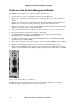
EdgeAccess Universal Chassis System Chapter 1 Overview and Management Architecture The Model 1502 Domain Management Module (DMM) provides Universal Chassis System (UCS) management with commands and controls in the 2U size that fits the UCS 1002. See Figure 1. It provides multiple levels of fault-tolerant manageability and supports industry-standard methods to access the module. Figure 1.
EdgeAccess Universal Chassis System Features of the Domain Management Module The DMM, shown in Figure 2, provides these features and functions: • • • • • • • • • • • Command and control up to eight UCS chassis from a single IP address Manage up to 224 chassis-based and 224 remote standalone units for up to 448 modules per domain Manage and configure devices within this chassis through the High-level Data-Link Control (HDLC) protocol, using the domain, virtual group, chassis, and module hierarchy Manage an
EdgeAccess Universal Chassis System DMM Management and SBMC Depending on the number and organization of modules and chassis, DMM management can include these four levels: • • • • Domain: One to eight chassis logically linked in a single management environment; the top level of DMM management Virtual Group: A logical set of two to 128 of the same type of module that can be in different chassis or remote linked partners, but all within the domain; the DMM supports up to 32 Virtual Groups Chassis: An enclos
EdgeAccess Universal Chassis System Security For enhanced security, the DMM supports four network security protocols: SNMPv3, Remote Access Dial In User Security (Radius), Secure Shell version 2 (SSH-2) and Secure File Transfer Protocol (SFTP). You can set values and options within the DMM software that will work with the security protocols on your network; for specific information, see the documentation for your implementation.
EdgeAccess Universal Chassis System Chapter 2 Hardware Installation and Functions This section describes how to install the DMM in the UCS Model 1002. Setup and Installation The DMM is installed in the UCS 1002 Chassis in slot 1 at the factory. Occasionally, you may need to install a DMM in a UCS 1002, if ordered separately. The DMM can be installed anywhere from slot 1 to slot 14. To install the DMM, see Figure 3 and follow these steps: 1.
EdgeAccess Universal Chassis System Front Panel Functions The DMM front panel includes these features (see Figure 2): • • • Four Status LEDs; Table 1 lists the LEDs and their meanings Two interface ports for serial and 10BASE-T access Two switches: Reset (reboots the DMM) and MDM/TRM Table 1.
EdgeAccess Universal Chassis System Chapter 3 Software Management Through VT100 You can manage the system with VT100 Terminal Emulation through the communication port on the DMM, which is accessible by a Telnet session, HyperTerminal or similar terminal emulation software or a standard SNMP network manager. Setting Up for Network Management Typically, the DMM runs within the network on an Ethernet connection, communicating with your Network Management Platform.
EdgeAccess Universal Chassis System Management User Interface The Management User Interface for the DMM provides screens for setup, monitoring, and diagnostics. You can access the screens directly by connecting to the serial port of the DMM in the chassis or by establishing a Telnet session with the DMM. These sections discuss the screens for the DMM. For details about any other module in the domain, see the user manual for that module.
EdgeAccess Universal Chassis System User Interface Organization The user interface consists of selectable, nested menus and screens, available in this order: Main Menu 1. Domain Management Module 1. System Configuration 2. Change Security & Passwords 1. Security Configuration 2. User Accounts 1. or 3. Edit User Account 3. Radius Client Configuration 3. PING Menu (Ping Generation) 4. Software Upgrade 5. Trap Configuration 6. Host Access Table 1. or 3. Edit Host Access 7.
EdgeAccess Universal Chassis System Login and DMM Main Menu When you connect to the DMM through HyperTerminal or Telnet, the first screen is the DMM Login Menu. To log in, follow these steps: 1. If this is your initial setup and no username or password has been set, type admin and press at the prompt for the username. Otherwise, type your username and press . 2. At the prompt to enter your password, enter the password if one has been set; otherwise, type admin and press .
EdgeAccess Universal Chassis System Manage the DMM The DMM provides communication with and some controls of the various chassis and modules within the domain. Most configuration options for basic information and communications parameters are available from the Domain Management Module menu. To reach the Domain Management Module screen, follow these steps: 1. At the Main Menu, type 1, "Manage or access the Domain Management Module," and press . The Domain Management Module menu appears; see Table 3.
EdgeAccess Universal Chassis System Table 4. System Configuration Report Item Chassis Type Description Always 2U, the UCS 1002 Ethernet Address MAC address for the DMM Ethernet Link Shows link status (up or down) and current full or half-duplex Current Bootcode Version number for bootcode for this module Current Firmware Version number for firmware for this module Active Bank Flash memory that holds the currently-used firmware Table 5. System Configuration Options Menu Item 1. System Contact 2.
EdgeAccess Universal Chassis System Table 6. IP Address Classes Class First Octet of IP Address Default Subnet Mask Class A 1-126 255.0.0.0 Class B * 128-191 255.255.0.0 Class C 192-233 255.255.255.0 *Address 127 is reserved for loopback. The MAC or Ethernet hardware address for the DMM is fixed. If BOOTP is enabled during the initialization process, it broadcasts BOOTP request packets until it receives a response from the BOOTP server or you press to continue.
EdgeAccess Universal Chassis System Table 7. Trap Configuration Options Trap When enabled, sends a Trap if. . .
EdgeAccess Universal Chassis System • Enter the values for primary and alternate SNTP servers: • IP Address: Set the address for the server; 0.0.0.
EdgeAccess Universal Chassis System Test a Connection With PING When you set up a new connection or need to troubleshoot an existing connection to another device, you can send a PING to the specific IP address for that device. Use the PING Generation screen to test the connection. To set up and send a PING, follow these steps: 1. At the Domain Management Module menu, type 3, "Ping Generation," and press . 2.
EdgeAccess Universal Chassis System Use the Software Upgrade report and menu screen to check the current version of the DMM firmware and to upgrade software for any module, except the CIM, in the domain or a managed module partner, if necessary. To access the Software Upgrade screen, follow these steps: 1. At the Domain Management Module menu, type 4, Software Upgrade, and press . The Software Upgrade screen appears. 2.
EdgeAccess Universal Chassis System 9. If this is new firmware for another module in the domain, follow these steps when the file transfer is complete: a. At the Software Upgrade menu, type 4, Copy Software from Source to Destination, and press . b. At the prompts, press to cycle through the information for the Source and Destination, and press ; the upgrade runs automatically. c. Go to the Module Menu to swap banks and reset the module.
EdgeAccess Universal Chassis System 3. At the Security Configuration screen, type the number for an item and press , then type a value or press to cycle through the options and press to select the value or option.
EdgeAccess Universal Chassis System 3.
EdgeAccess Universal Chassis System Set Up Host Access The SNMP agent allows access to up to 24 Host IP addresses listed in the Host Access Table. Set up the Host and network information for access to the DMM on the Host Access Table screen. When a host attempts to access the DMM, the IP address is authenticated against the entries on the host table, from the most restrictive entry to the least restrictive entry.
EdgeAccess Universal Chassis System Use the Radius Client Configuration screen to set up communication with the Radius server in order to authenticate users at login. To access the Radius Client Configuration screen, follow these steps: 1. From the Change Security & Passwords menu, type 3, "Radius Client Configuration," and press . The Radius Client Configuration appears. 2.
EdgeAccess Universal Chassis System Set Up the Notification Destination for Traps Use the Trap Notification/Destination Table to view and set up the destination for Trap messages. In addition to setting the host address and port, you can set the security level for the notification, then set values for various parameters, depending on the security level. For details on and values for security parameters for your system, see the documentation for your network security system.
EdgeAccess Universal Chassis System • • • • • • • Authentication Key: Shows the key that authenticates the notification for MD5 or SHA Authentication Protocol; this is generated automatically for the Authentication Password, but can be changed if the destination uses a different Authentication Key generation algorithm; 16 Hex characters for MD5 protocol or 20 Hex characters for SHA protocol.
EdgeAccess Universal Chassis System To view the System Log screen, follow these steps: 1. From the Main Menu, type 7, "Alarm/System Log," and press . The System Log Screen appears. • To view earlier events, type irst, ext, rev, ast, or oto. • To clear the log, type c (this can take up to several minutes). • To filter the list of events by only location, port, or type of event, type s, "Select Filter," and press .
EdgeAccess Universal Chassis System Table 8. Syslog Message Severity Mask Levels Severity Level Include Message Types About...
EdgeAccess Universal Chassis System Manage the Module Code Library The Module Code Library, located in the Flash Memory so that the information remains available after power-down and power-up, can store one version of code for each module in the domain. You may need to view or delete the Library Code files (the firmware, configuration [*.cfg], and capabilities [*.cap] files for various modules and the DMM). To access the Code Library menu, follow these steps: 1.
EdgeAccess Universal Chassis System Create and Manage Virtual Groups You can set up a Virtual Group to upgrade software or swap memory banks on two or more modules of the same type at the same time; the DMM can support up to 32 Virtual Groups. You can create, edit, and delete Virtual Groups within the Domain. To access the Virtual Group menu and manage the groups, follow these steps: 1. At the Main Menu, type 2, "Manage or access a specific Virtual Group" and press .
EdgeAccess Universal Chassis System Manage a Chassis You can manage the modules within a chassis. You can view information, such as type, status, software versions, remote partners, or power consumption, about all modules in a single chassis. Use the Chassis Management screen to view information about and status for each Chassis in the Domain and to access specific modules within that chassis.
EdgeAccess Universal Chassis System Chassis:5 Bootcode Version Slot LOCAL REMOTE 1 06.30 N/A 2 05.70 Offline 3 05.70 05.70 4 05.70 Offline 5 05.70 Offline 6 Empty 7 N/A N/A 8 N/A N/A 9 Empty 10 N/A N/A 11 Empty 12 05.50 Offline CHASSIS MANAGEMENT Firmware Version L/ACT L/INA R/ACT 05.03 05.00 04.30 04.20 04.30 04.30 04.30 01.60 01.45 02.13 02.13 01.60 R/INA 04.30 01.60 Figure 8. Typical Chassis Management Screen, Firmware Information.
EdgeAccess Universal Chassis System To access the CIM Management screen, follow these steps: 1. From the DMM Main Menu, type 5, or "Manage or access the CIM modules," and press . 2. The CIM selection appears at the right of item 5; press to cycle through the options, then press to select a CIM. The CIM Management screen appears with information and status for the chassis and CIM. See Figure 10. 3. To return to the Main Menu, press .
EdgeAccess Universal Chassis System To access the Module Menu, follow these steps: 1. From the DMM Main Menu, type 4, or "Manage or access a specific Module," and press . 2. At the prompt, type the Chassis/Slot numbers for the module, such as "1/4," for Chassis 1 and Slot 4, and press . The Module Menu appears. 3.
EdgeAccess Universal Chassis System Chapter 4 Specifications Physical Specifications Dimensions 3.0"H x 1.0"W x 9.0"D (76.2 mm x 25.4 mm x 228.6 mm) Weight 0.3 lb (0.1 kg) Environment 0° to 50° C Up to 95% Humidity (non-condensing) Power +5.
EdgeAccess Universal Chassis System Appendix A Warranty Limited Lifetime Warranty Effective July 1, 2005 and After, Canoga Perkins warrants that, at the time of sale, and, for its lifetime, with certain exceptions noted below, every Canoga Perkins' labeled product purchased will be free from defects in material and workmanship for its lifetime, if properly installed and used in conformity to Canoga Perkins' published specifications. This warranty covers the original user only and is not transferable.
EdgeAccess Universal Chassis System Limitations Canoga Perkins may at its sole discretion modify its Limited Warranty at any time and from time to time. Other than those expressly stated herein, THERE ARE NO OTHER WARRANTIES OF ANY KIND, EXPRESSED OR IMPLIED, AND SPECIFICALLY EXCLUDED BUT NOT BY WAY OF LIMITATION, ARE THE IMPLIED WARRANTIES FOR FITNESS FOR A PARTICULAR PURPOSE AND MERCHANTABILITY.
EdgeAccess Universal Chassis System Appendix B Configuration File Fields and Defaults ### WARNING - DO NOT MODIFY THIS HEADER ### CfgFileBuiltWithFirmware = V7.2 CfgFileBuildDateAndTime = 19-May-2006 04:47:33 ######################################## #### ## The following must be modified to = "Yes" if the specified items ## are to be configured, otherwise the config items will be ignored.
EdgeAccess Universal Chassis System ## Group Name <7> VirtualGroupName = ## ----- <1> VirtualGroups [ VirtualGroupChassis = VirtualGroupSlot = VirtualGroups ] ## End Group Name <12> End ## End Group Name <7> End ## Group Name <13> VirtualGroupName = ## ----- <1> VirtualGroups [ VirtualGroupChassis = VirtualGroupSlot = VirtualGroups ] ## Group Name <8> VirtualGroupName = ## ----- <1> VirtualGroups [ VirtualGroupChassis = VirtualGroupSlot = VirtualGroups ] ## End Group Name <13> End ## End Group Name <
EdgeAccess Universal Chassis System VirtualGroupChassis = VirtualGroupSlot = VirtualGroups ] ## End Group Name <18> End ## Group Name <19> VirtualGroupName = ## ----- <1> VirtualGroups [ VirtualGroupChassis = VirtualGroupSlot = VirtualGroups ] ## End Group Name <24> End ## End Group Name <19> End ## Group Name <20> VirtualGroupName = ## ----- <1> VirtualGroups [ VirtualGroupChassis = VirtualGroupSlot = VirtualGroups ] ## Group Name <25> VirtualGroupName = ## ----- <1> VirtualGroups [ VirtualGroupChassis
EdgeAccess Universal Chassis System ## Group Name <30> VirtualGroupName = ## ----- <1> VirtualGroups [ VirtualGroupChassis =2 VirtualGroupSlot =13 VirtualGroups ] ## End Group Name <30> End ## Group Name <31> VirtualGroupName = ## ----- <1> VirtualGroups [ VirtualGroupChassis =2 VirtualGroupSlot =13 VirtualGroups ] ## End Group Name <31> End ## Group Name <32> VirtualGroupName = ## ----- <1> VirtualGroups [ VirtualGroupChassis =2 VirtualGroupSlot =13 VirtualGroups ] ## End Group Name <32> End ## End of [-Vi
EdgeAccess Universal Chassis System SlotName(6) = SlotName(7) = SlotName = SlotName(1) = SlotName(2) = SlotName(3) = SlotName(4) = SlotName(5) = SlotName(6) = SlotName(7) = SlotName = SlotName(1) = SlotName(2) = SlotName(3) = SlotName(4) = SlotName(5) = SlotName(6) = SlotName(7) = SlotName = SlotName(1) = SlotName(2) = SlotName(3) = SlotName(4) = SlotName(5) = SlotName(6) = SlotName(7) = SlotName = SlotName(1) = SlotName(2) = SlotName(3) = SlotName(4) = SlotName(5) = SlotName(6) = SlotName(7) = SlotName = S
EdgeAccess Universal Chassis System SlotNameA(2) SlotNameA(3) SlotNameA(4) SlotNameA(5) SlotNameA(6) SlotNameA(7) SlotNameA = SlotNameA(1) SlotNameA(2) SlotNameA(3) SlotNameA(4) SlotNameA(5) SlotNameA(6) SlotNameA(7) SlotNameA = SlotNameA(1) SlotNameA(2) SlotNameA(3) SlotNameA(4) SlotNameA(5) SlotNameA(6) SlotNameA(7) SlotNameA = SlotNameA(1) SlotNameA(2) SlotNameA(3) SlotNameA(4) SlotNameA(5) SlotNameA(6) SlotNameA(7) SlotNameA = SlotNameA(1) SlotNameA(2) SlotNameA(3) SlotNameA(4) SlotNameA(5) SlotNameA(6)
EdgeAccess Universal Chassis System SlotNameB(6) SlotNameB(7) SlotNameB = SlotNameB(1) SlotNameB(2) SlotNameB(3) SlotNameB(4) SlotNameB(5) SlotNameB(6) SlotNameB(7) SlotNameB = SlotNameB(1) SlotNameB(2) SlotNameB(3) SlotNameB(4) SlotNameB(5) SlotNameB(6) SlotNameB(7) SlotNameB = SlotNameB(1) SlotNameB(2) SlotNameB(3) SlotNameB(4) SlotNameB(5) SlotNameB(6) SlotNameB(7) SlotNameB = SlotNameB(1) SlotNameB(2) SlotNameB(3) SlotNameB(4) SlotNameB(5) SlotNameB(6) SlotNameB(7) SlotNameB = SlotNameB(1) SlotNameB(2)
EdgeAccess Universal Chassis System ## ----- <1> HostTable [ HostTableIpMask = 172.16.2.58 /32 HostTableTelnetAccess = Telnet and SSH HostTableSnmAccess = Write HostTableSnmpProtocols = 2 HostTableSnmpReadCommunity = public HostTableSnmpWriteCommunity = private HostTableSnmpAccessLevel = 4 HostTableFtpAccess = 1 HostTable ] ## ----- <2> HostTable [ HostTableIpMask = 172.16.4.
EdgeAccess Universal Chassis System Index A E add edit host access, 3-14 host access, 3-14 trap destination, 3-16 trap destination, 3-16 user account, 3-13 user account, 3-13 virtual group, 3-21 virtual group, 3-21 alarms Edit Host Access screen, 3-14 CIM Management screen, 3-23 EIA interface pinout, 4-1 reset, 3-20 F syslog, 3-19 firmware download view, 3-18 FTP or SFTP, 3-10 C IP address, 3-11 Change Password screen, 3-16 firmware revision Change Security & Passwords menu, 3-12
EdgeAccess Universal Chassis System M S MAC address, 3-7 SBMC, 1-3 menu screen Change Security & Passwords, 3-12 Change Password, 3-16 DMM Main Menu, 3-4 Change Security & Passwords menu, 3-12 Domain Management Module, 3-4 Chassis Management, 3-22 Module, 3-24 CIM Management, 3-23 System Configuration, 3-5 Code Library menu, 3-20 Virtual Group Management, 3-21 Connected Sessions, 3-20 mibs, required, 3-1 DMM Main Menu, 3-4 Modem/SLIP/PPP menu, 3-9 Domain Management Module menu, 3-4 mo
EdgeAccess Universal Chassis System Set Date and Time screen, 3-8 System Configuration screen, 3-5 set up terminal connection, 3-1 system date and time, 3-8 sideband management channel, 1-3 System Log screen, 3-18 SIMM card functions, 1-2 System Status screen, 3-20 SNMP, 3-14 T for traps, 3-16 time and date, 3-8 v3 parameters, 3-17 Trap Configuration screen, 3-7 SNTP Configuration screen, 3-8 SNTP date and time, 3-8 Trap Notification/Destination Table screen, 3-16 troubleshooting and PING, 3
CANOGA PERKINS CORPORATION 20600 Prairie Street Chatsworth, California 91311-6008 USA Phone: (818) 718-6300 FAX: (818) 718-6312 Web Site: www.canoga.com Email: fiber@canoga.