
User Guide



64 – BuzzEdit
™
| Copyright © 2000 Buzz Tools
®
, Inc.
in this example, are Heart-A.pcs and Heart-B.pcs. The manager file
is not sewn.
To adjust the place at which BuzzEdit
™
splits a design into a new
file, choose View > Multiple File Settings. This command brings up
a dialog box that allows you to specify the maximum number of
thread changes and maximum number of stitches for the file type
you are currently editing.
Change these settings to adjust where
BuzzEdit
™
will split your design.
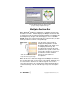
If you wish, you can manually insert new section breaks into your
design to force your design to split at a specific location. First,
position the stitch cursor in the desired location on the
Stitches-in-Time
™
window. You can click on any of the graphs to
take advantage of their unique snap characteristics. Once the stitch
cursor is positioned as desired, choose Tools > Insert Section
Break.
Use to add new section breaks into your design.
You can also decide to set all of the splitting locations manually. To
do this you must first set your file type settings to have a high
maximum number of thread changes (Tools > Multiple File Settings).