
Specifications
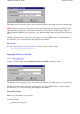



number of pages being printed.
Printing of the map can be
aborted by pressing the Esc key
when the OziExplorer window has the
focus. Pressing the Esc key does not give an instant response, but be patient it will respond when it
gets control.
Pages
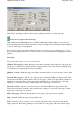
This allows you to set the number of pages wide and the number of pages deep that the "Fit to Page
(s)" options use. These values are not applicable to the "to Scale" options. The Wide and Deep work
together and because the map is always printed with the correct aspect ratio one of the setting will
override the other. In reality they mean the map will be NO wider and NO deeper than the values
specified.
Example
-
to print a map to fit on 2 pages wide specify Wide=2 and Deep =10(a large number),
Deep is specified as 10 (or whatever) to make sure it does not affect the Wide value, if Deep was
specified as 1 or even 2 it may reduce the wide value to a smaller value (say 1.5) because of the
aspect ratio calculations.
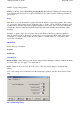
Orientation
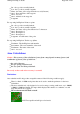
Selects the page orientation.
Portrait
Landscape
Map Objects
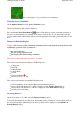
Black & White
-
Prints the Waypoints, Events, Map Features and Map Comments in Black & White
for clarity. This does not apply to colored Symbols.
Color
-
Prints the above in color. Note the colors of the objects may change to match the map
palette.
Note : This setting does not affect the way the actual map is printed, only the objects drawn on the
map.
Do not Print Map Image
Page
209
of
252
OziExplorer Help Contents