
Specifications



-
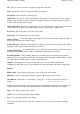
Plot Location of Selected Waypoint on Current Map
-
Will position the current map so the
Waypoint is in the center of the screen.
-
Find Map for Selected Waypoint
-
Will find all maps which can display the waypoint, see
Find Map help for details.
-
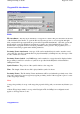
Selection functions, none, all, invert.
Delete
-
Deletes the selected waypoints.
Select if Not on Map
- Selects all Waypoints which will not plot on the currently loaded map, they
can then be deleted or another action performed.
Add
- Manually Add a new Waypoint.
Edit
- Edit the selected Waypoint.
Properties
-
Opens the properties window for the selected Waypoint, a double click on the waypoint
also opens the properties window.
Close
- Closes the Waypoint List. If you have made any changes to the Waypoints you will be
reminded to save the Waypoint file.
Adding and Editing Waypoints
Editing Waypoints
There are 2 ways to edit waypoints from within the Waypoint List.
Select the waypoint and press the
Edit Button
- this gives an editor where only the major properties
are available, this is the preferred method for editing waypoints quickly.
Select the waypoint of press the
Properties Button
- this gives access to all the properties of the
waypoint.
Adding Waypoints
To add a new waypoint to the current list press the
Add Button
- this will open up the Add/Edit
Waypoint window where the major details of the waypoint can be entered. To set the other
properties of the waypoint you must first add the waypoint and then select the properties button to
open the properties window.
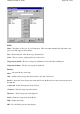
Add/Edit Waypoint Window
This section describes the fields in the window.
Name
-
The waypoint name
Position Fields
- These are entered using the same coordinate system you have selected in the
waypoint list.
Page
164
of
252
OziExplorer Help Contents